
Learning center / Get started
Getting started with SellerTiger
SellerTiger is an operating system for online sellers: products, stock, orders, pricing, marketing, customer service and teamwork in one workspace. Everything is connected — an order links to its SKUs, a SKU to its stock and images, a task to the chat message it came from.
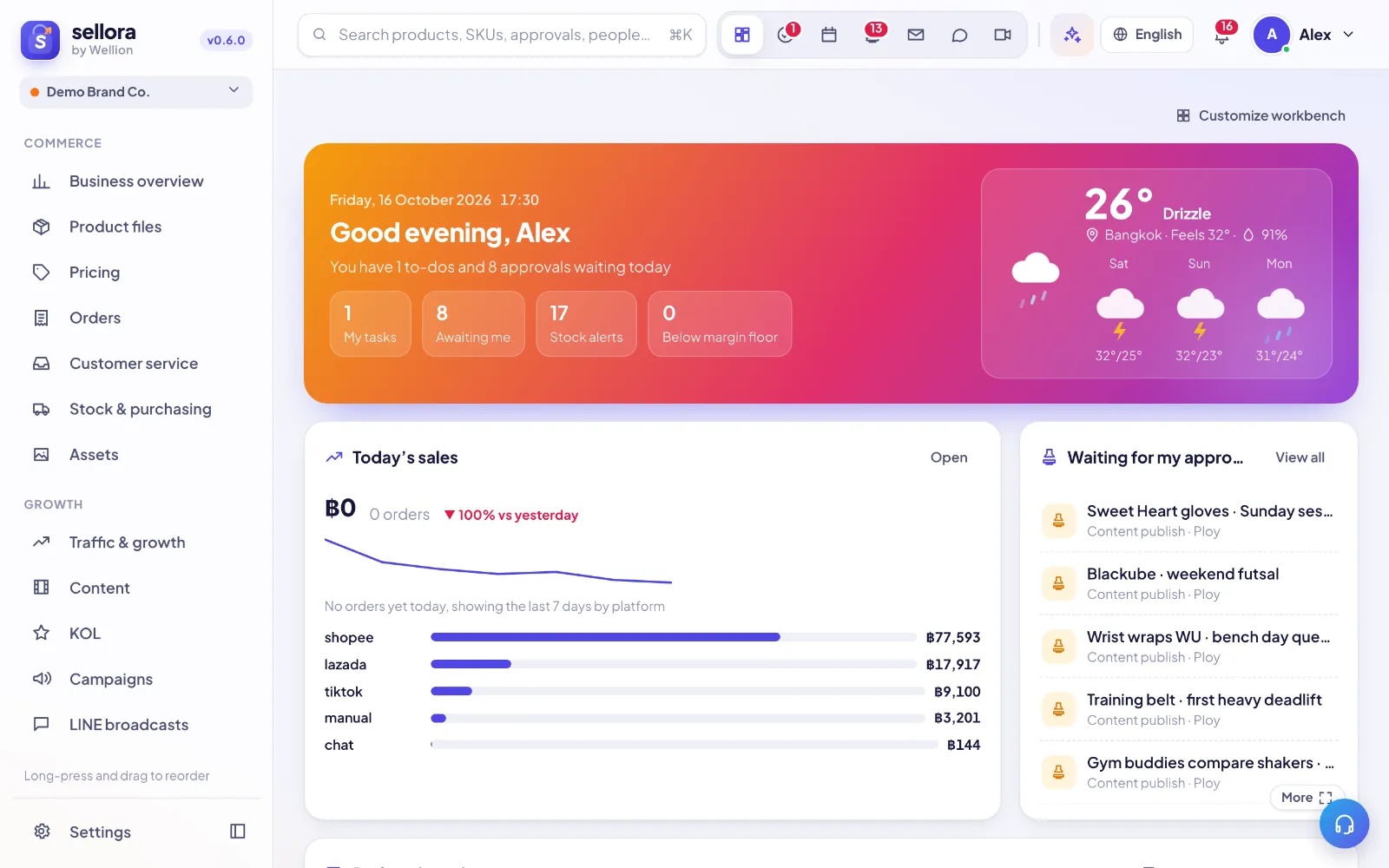 12345
12345- Navigation — every module, grouped by Commerce, Growth, Money and Team.
- Search (⌘K / Ctrl+K) — products, orders, tasks, people and pages.
- Dock — Home, tasks, calendar, approvals, mail, chat and meetings, with unread counts.
- AI assistant — ask about your own data in any language.
- Help & support — learning center, AI answers and tickets.
Your first 30 minutes
- Company details — Settings → Company: legal name, tax ID, logo. These appear on printouts.
- Brands & channels — Settings → Brands & channels: add your brands and the platforms you sell on (Shopee, Lazada, TikTok Shop, your own website, LINE…). Every picker in SellerTiger uses this list.
- Fees — Settings → Fee rules: platform commission, payment and shipping fees per platform. Pricing and profit numbers use them.
- Connect shops — Settings → Connections (see "Connect your marketplace shops"). You can also work fully manually.
- Products — Products → import a spreadsheet or add SPUs/SKUs by hand. Drag product images onto the image box.
- Invite your team — Settings → Accounts → Invite. Choose a role (founder, leader, member, viewer).
Working standalone or connected
SellerTiger works without any integration: create manual orders, record stock in/out, run stocktakes and scan barcodes. When a marketplace or ERP is connected, that data syncs automatically and the manual step for it is locked so numbers never double count.
Where to find things
- Home — your tasks, approvals, today's calendar and module widgets.
- Search (⌘K / Ctrl+K) — find any product, order, task, person or page.
- Right-click almost anything for quick actions.
- The headset button (bottom-right) — help articles, the AI assistant and support tickets.
Still need help?
Open in SellerTigerInside SellerTiger, press the headset button to ask the AI assistant or open a support ticket.