
Finance reconciliation with PEAK
Finance reconciliation checks that every marketplace order is recorded in your accounting software (PEAK), and recorded correctly. It matches each order to a PEAK receipt by order number, sorts the differences into plain groups, and gives you a ready-made file to add whatever is missing to PEAK.
How matching works
- Orders side — your orders in SellerTiger (from the BigSeller API, another ERP or platform API, or a manual import). An order belongs to the month it was paid (order date if there is no payment date); canceled orders are excluded.
- Accounting side — PEAK receipts whose customer is an online shop (a cash-sale contact per platform and shop). Void and draft receipts are skipped. Receipts for company / B2B customers are counted separately and not compared with orders.
- The key — a receipt matches an order when its Refer to (อ้างอิงถึง) field equals the order number. The order amount compared is buyer paid + platform voucher, the same way marketplace receipts are normally booked.
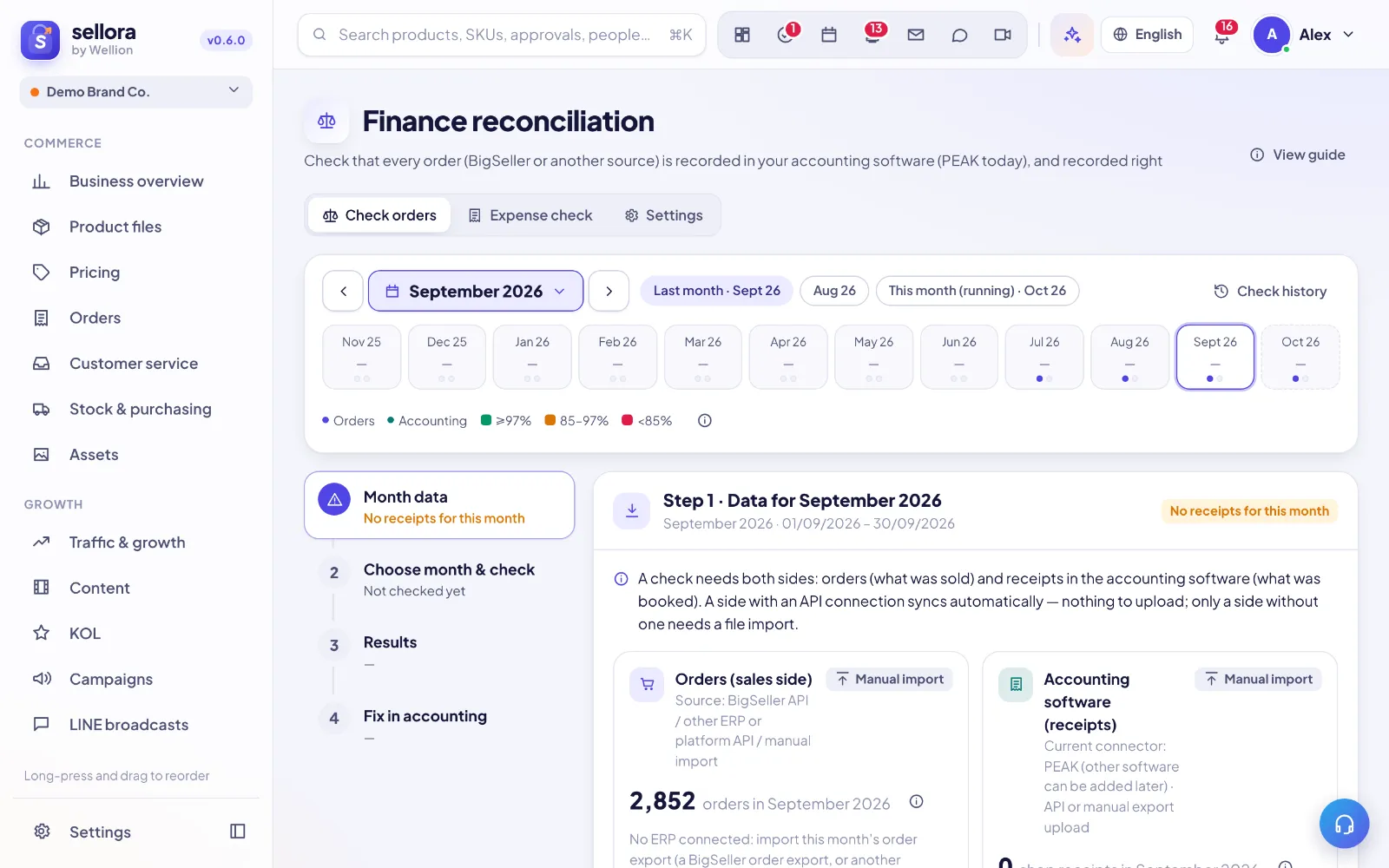
Open Finance & PEAK in the sidebar. The page has three tabs: Check orders, Expense check and Settings. Use the month picker to choose a month; each cell's color and number show the latest check's result for that month.
Step 1 · Data for the month
Each side shows where its data comes from:
- With an API (BigSeller and/or PEAK Open API connected), data syncs automatically — no upload needed. Press Sync now for an immediate refresh.
- Without an API, import a file:
- In PEAK go to Revenue › Receipt › Export, pick a date range that covers the month and export as Excel.
- Drag the file into the box (Drop the PEAK export here). Don't edit it first.
- SellerTiger shows what is inside — document count, date range, total and shops — then click Save these … documents.
Re-uploading is safe: the same receipt is updated, never doubled. For the Expense check, export Expenses › Export the same way.
Tip: Only the founder or a leader can import files.
Step 2 · Check the month
Press Check now. SellerTiger takes every order in the period and looks for the PEAK receipt with the same order number, then compares amounts and dates. Under More options you can limit the check to Only one platform, and set how many baht (Amounts within ฿ count as equal) and days (Dates within days count as equal) still count as a match. Earlier checks are kept under Earlier checks.
If the current month isn't over yet, you can look at it, but do the real check after month end.
Step 3 · Read the results
The headline numbers are BigSeller orders, Found in PEAK (orders with a receipt ÷ orders that should have one), Shop receipts (accounting) and PEAK minus BigSeller (negative = PEAK has less). Differences are grouped:
| Group | What it means | What to do |
|---|---|---|
| Sold but not recorded in PEAK | Paid, completed order with no receipt. | Step 4. |
| Amount differs | Both sides have it, but amounts differ beyond your tolerance — often coins, shipping subsidies or seller vouchers. | Mark small ones OK; check large ones in the seller center. |
| In PEAK but not in BigSeller | A shop receipt whose Refer to number isn't among your orders. | Check it is a real order; if not, void it in PEAK. |
| Recorded twice in PEAK | Two receipts for one order — income counted twice. | Void the extra receipt. |
| Canceled or returned, still in PEAK | The order was canceled or returned later. | Void the receipt or issue a credit note. |
| Date in PEAK is different | Receipt date is days away from the order dates. | Fix the date (watch the VAT month). |
| Not due yet | Order still shipping, or completed after the last PEAK data day. | Nothing — timing, not a mistake. |
Click View list to see the orders with a Likely reason for each line. From the list you can Download this list (Excel), Assign to someone (creates a task), Mark small differences as OK, or mark lines done one by one. AI: explain this check summarizes the result in plain words.
Step 4 · Fix missing receipts in PEAK
Pick one of two ways:
- Way A · Download a ready PEAK receipt import file (recommended). Uses PEAK's own receipt template: one receipt per order, product lines by SKU, a separate discount line, Refer to = order number. Files are split at 1,000 rows, PEAK's limit. Then in PEAK: Revenue › Import Document › Format PEAK › Receipt, upload, check the preview, confirm — one file at a time.
- Way B · Use PEAK's platform import. Export the orders from the Shopee / Lazada / TikTok Shop seller center, keep only the order numbers SellerTiger lists (Copy … order numbers or Download the missing order numbers), then in PEAK: Revenue › Import Document › From Others Platform. This uses PEAK import credits. Orders that aren't from a marketplace must use Way A.
Afterwards, upload a fresh receipt export (or sync) and press Check now again — the added orders drop off the list.
Settings: accounting codes (set once)
Under Settings, fill in the codes the import file needs. SellerTiger learns from your existing receipts which PEAK customer each shop uses; you only type its Customer code (PEAK → Contacts). Optional per shop: Paid via and Group. For all shops: Sales account, Discount account, the account for the platform voucher / shipping line, Tax invoice, Price type, VAT rate, Receipt date basis (order, paid, shipped or completed date) and how to write the discount. Buttons such as Use learned copy what SellerTiger detected.
Here you also turn on Automatic sync & check: with an API connected, SellerTiger syncs last month and this month daily at the hour you choose and can Check last month after syncing, notifying leaders when there are open issues.
Expense check and the ledger
The Expense check tab answers "which PEAK income and costs belong to the online shops?" for one month at a time:
- Upload the PEAK expense export for the month.
- Press Sort …: rules handle the obvious lines (platforms, couriers, ads), earlier human decisions are reused, and AI sorts the rest into categories.
- Review: filter To review or AI unsure, then Accept or pick a category. Accepted patterns are reused next time.
PEAK vs SellerTiger then compares the same lines (income, cost of goods, fees, ads…) between PEAK and SellerTiger's own orders and Budget ledger, highlighting gaps above ฿1,000 and 5%. AI: explain the gaps describes where they differ and what the accountant should fix first. Purchase orders → PEAK creates a purchase import file from approved purchase orders.
FAQ
- Found in PEAK is low for one shop. Its receipts may not be imported for the whole month, or its customer code differs — check Settings.
- Many orders differ by the same amount. Usually a platform promotion or subsidy.
- Orders after a date all look missing. The PEAK data ends earlier; upload a newer export.
Inside SellerTiger, press the headset button to ask the AI assistant or open a support ticket.