
OKRs & performance
OKRs in SellerTiger link company, team and personal objectives together, measure key results directly from system data where possible, collect weekly check-ins, and turn the results into a transparent leaderboard that can serve as the basis for bonuses.
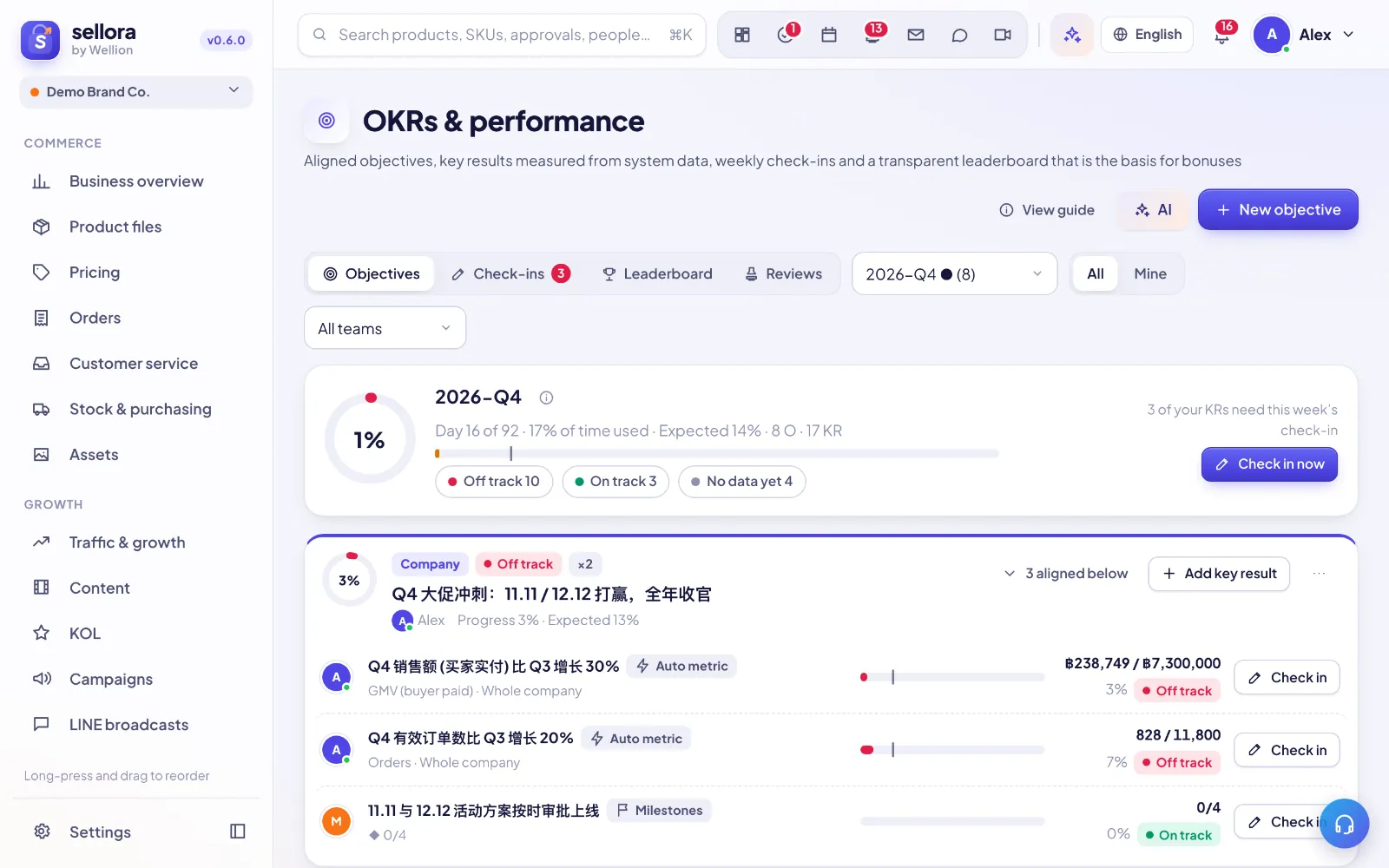
Key concepts
- Objective — a qualitative goal for a Period (Monthly, Quarterly or Yearly) at a Level: Company, Team or Personal.
- Alignment — every objective can be Aligned to a higher objective, so personal goals roll up to team goals and team goals to company goals. A top-level objective has None (top-level).
- Key result (KR) — a measurable outcome under an objective, with an owner, Weight and Due date. There are three kinds:
| Kind | How progress is measured |
|---|---|
| Auto metric | Calculated from SellerTiger data — e.g. GMV (buyer paid), orders, tasks done or on-time rate, content published or views, creator-attributed orders, campaign GMV, reach, followers gained, buyer chat response rate, stock-outs. No typing needed. |
| Manual number | You enter the current value at each check-in. |
| Milestones | A checklist of steps; progress = milestones completed. |
- Expected progress — where the KR should be by today. With Glide path (baseline → target) it grows evenly over the period; with Must hold the target from day one it is the full target at all times.
- Health — progress compared with expected: On track (90 % or more of expected), At risk (60–90 %), Off track (below 60 %), plus Achieved, Not started and No data yet. A low confidence score in the latest check-in can lower the health one step.
Create objectives and key results
- Open OKR & leaderboard in the sidebar, tab Objectives, and choose the period.
- Click New objective. Enter the title, level (pick a team for team objectives), owner and Aligned to.
- On the objective, click Add key result and choose its kind:
- Auto metric: pick the System metric, Measured for (The KR owner, Owner's team or Whole company) and Measured over (Period to date, Last 7 days or Last 30 days). Live data shows the value so far and last period's value; Use previous as baseline fills the baseline for you.
- Manual number: set Baseline, Target, Unit and Direction (Higher is better / Lower is better).
- Milestones: Add milestone for each step.
- Set Weight, Due date and Pace.
To build the tree downward, use New aligned objective on any objective. Each objective shows how many are aligned below it. Only the objective owner or a leader can change a KR's definition.
Tip: Start with company objectives, then let teams and people align to them — it keeps every personal goal tied to a company result.
Weekly check-ins
In the Check-ins tab you see My key results, the Latest team check-ins and who has Not checked in this week. For each KR click Check in:
- Enter the current value (for auto-metric KRs it is Calculated automatically — just update confidence and notes).
- Set Confidence from 1 (almost impossible) to 10 (certain).
- Write Progress this week and any Blockers / help needed.
Each KR shows Actual vs expected on a chart and its Check-in history. You can Add a task for this KR to connect day-to-day work to it. The Home page reminds you how many key results still need this week's update, and when a KR goes off track or confidence drops, the owner of the parent objective is notified.
Leaderboard and bonuses
The Leaderboard tab scores each person for the period:
Score = Σ(component × weight) ÷ Σ(weights with data) × 100 − overdue penalty + leader adjustment
| Component | Meaning |
|---|---|
| OKR | Each KR's achievement = actual ÷ expected progress (max 100 %), averaged by KR weight. |
| On time | Share of tasks due this period finished on time. |
| Output | Task points finished, relative to the top person (top = 100 %). |
| Check-ins | Weeks in which the person updated their KRs. |
| Approvals | Average decision time as an approver vs the target. |
Components with no data are skipped and their weight is shared out. Click a person to see How this score was made with raw data. Leaders can Edit rules (weights, penalty, approval target hours, check-in day, people not ranked) and Export bonus basis to Excel, optionally with a Bonus pool split by score share.
Reviews and closing a period
In Reviews, each person writes a Self-assessment and the leader adds a Leader review, optionally with a score adjustment (a reason is required). Generate AI summary drafts a performance summary.
When the period is over, a leader clicks Close period: OKRs, reviews and the leaderboard are frozen as the bonus basis. Only the founder can Reopen it, with a reason.
AI helpers
AI weekly report, AI summary of check-ins, AI performance review, AI: diagnose this objective and AI coach: how to catch up (on a KR) write suggestions from the OKR data only.
FAQ
- My auto-metric KR shows No data yet. The underlying module has no data for that scope and window yet — check that orders, tasks or content are recorded.
- Why can't I edit a KR? The period may be Closed, or you aren't the objective owner or a leader.
- Am I on the leaderboard? Founders, view-only accounts and people excluded in the rules are Not ranked.
Inside SellerTiger, press the headset button to ask the AI assistant or open a support ticket.