
Connect couriers (Flash, Kerry, J&T, Thailand Post, SPX, Ninja Van, DHL)
Save a courier's API keys in SellerTiger, and in Orders → Ship you can pick that courier to create shipments, print labels and track parcels automatically. Marketplace orders (Shopee / Lazada / TikTok Shop) still use the platform's own logistics; courier connections are for orders you ship yourself, such as website, LINE and manual orders.
Status (2026-10-17): once the keys are saved (encrypted), you can pick the courier when shipping. Until live courier calls are switched on on the server, every shipment is a test shipment (numbers start with
TEST, no courier is booked). Flash Express is wired to its official API; the other couriers are reserved according to their documentation, and you can always type the tracking number by hand on the order.
Before you start
- Who does it: someone with level-4 access to Settings in SellerTiger.
- Courier account: Thai couriers don't have a self-serve API sign-up site. Sign a contract with the courier first (business / e-commerce customer), then ask your courier sales rep or account manager for API credentials. You usually get test (Sandbox) credentials first, and live credentials after integration testing passes.
What each courier needs
| Courier | Fields in SellerTiger | What to ask the courier for (their name for it) |
|---|---|---|
| Flash Express | Merchant ID, API key | The mchId and secret key sent by the Flash Thailand team after you sign |
| Kerry Express (KEX) | App ID, App key | The App ID and API Key from KEX sales (there's also a Prefix, which SellerTiger doesn't need yet) |
| J&T Express | Customer code, API key, Private / signing key | The customer code and signing key J&T issues with the partner agreement |
| Thailand Post | API token | The Thailand Post logistics API token (usually generated after registering on the developer page at track.thailandpost.co.th; couldn't be verified on the official pages on 2026-10-17, so go by Thailand Post) |
| SPX Express | App ID, API secret | SPX merchant API credentials (SPX has no public merchant API yet; usually through the Shopee ecosystem) |
| Ninja Van | Client ID, Client secret | The live Client ID / Client Key your account manager issues after the sandbox integration review (Thailand region /TH/) |
| DHL eCommerce | Client ID, Client secret, Pickup account | The Client ID and password from DHL sales (one set for sandbox, one for live), plus the Pickup Account ID |
Step 1 · Credentials: enter them in SellerTiger
- Settings → Connections → "Couriers" → click the courier you want to use.
- Under Keys, fill in each field as in the table above. A field that's already saved shows "masked value · Leave empty to keep", so change only the field you need to.
- Set Environment to Sandbox or Live, matching your credentials.
- Tick Selectable on manual orders.
- Click Save.
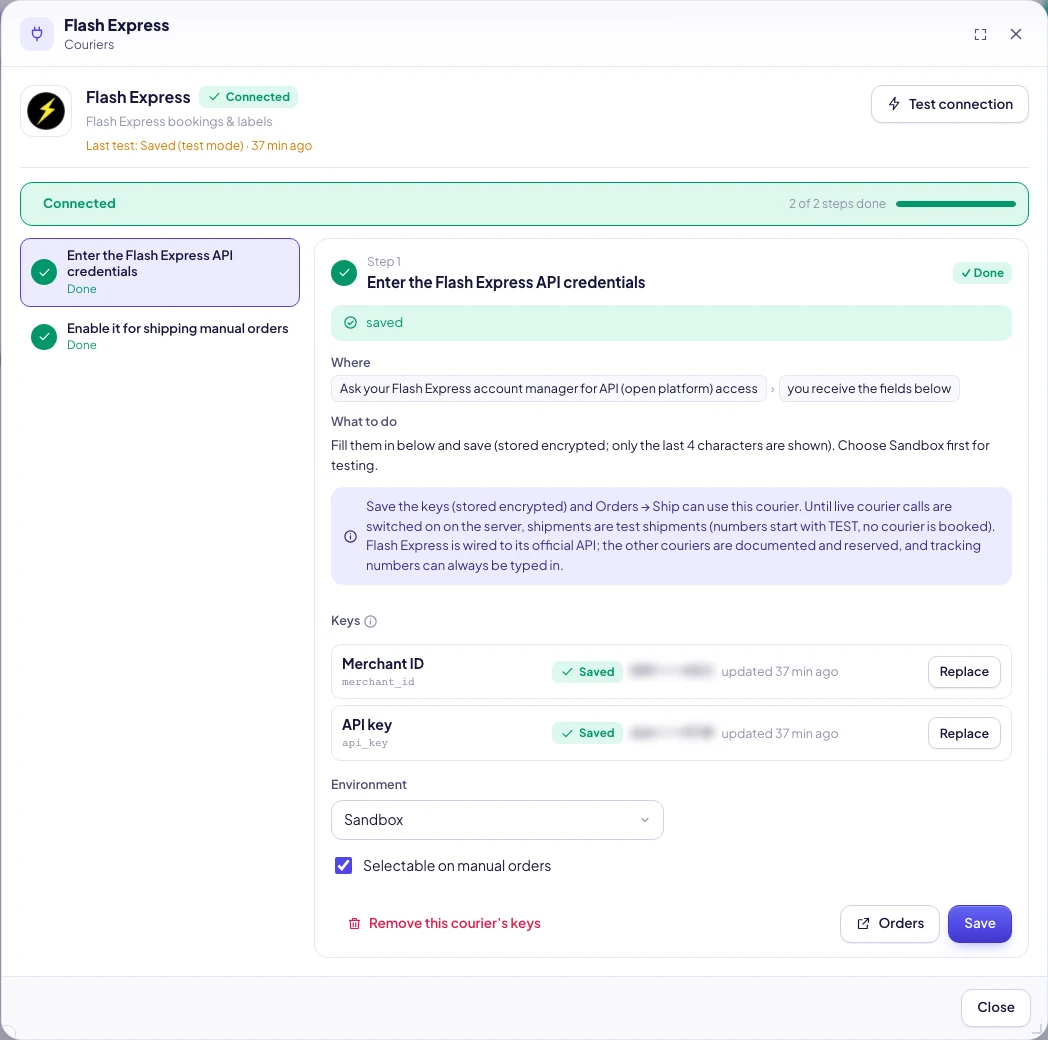
Step 2 · Encryption / Webhook: not needed
Keys are stored encrypted in SellerTiger. SellerTiger checks tracking status on a schedule (hourly by default), so there's no webhook to set up on the courier's side.
Step 3 · Permissions: enabled by the courier under your contract
Step 4 · Callback: not needed
Step 5 · Test
Click Test connection:
- "Saved · test mode": the keys are complete; shipping creates test shipments whose numbers start with
TEST. - "Saved · live calls on": live calls are switched on on the server, so orders are really booked with the courier.
- "Keys are saved. The courier API integration is not live yet…" + "Incomplete: …": a field is still missing, or this courier's API is still reserved.
After testing, the top of the window may show a red "Last test ✗ · saved_test_mode". This is a known display issue: it means "Saved · test mode", not a failure.
Step 6 · Start shipping
- Orders → open an order you ship yourself → Ship.
- Pick the courier, check the weight and COD → create the shipment. In test mode the number starts with
TEST. - Print the label; tracking status updates automatically at the set frequency in Data Center → Orders → Couriers & shipments.
Troubleshooting
| What you see | Cause | What to do |
|---|---|---|
| This courier isn't set up yet. Connect it in Settings first | The courier picked when shipping has no saved keys | Complete Step 1 |
| Reserved — not implemented yet | This courier's API isn't wired up yet | Type the tracking number by hand for now |
| This courier isn't supported | The courier isn't on the list | Type the tracking number by hand |
| Unknown field | Wrong field name (usually an outdated page) | Refresh the page and fill it in again |
| Every tracking number starts with TEST | Live courier calls aren't switched on on the server yet | Ask SellerTiger to switch them on; earlier test shipments don't incur courier fees |
| Remove this courier's keys | You want to stop using it | Click it and confirm; it can no longer be picked on manual orders |
Inside SellerTiger, press the headset button to ask the AI assistant or open a support ticket.