
Connect a LINE Official Account (Messaging API)
Enter your LINE OA's Channel ID, Channel secret and long-lived Channel access token in SellerTiger to send broadcasts from SellerTiger and automatically read friend counts, this month's quota and broadcast results. It's free and self-serve; each OA is connected separately.
Two rules to remember first
Warning: the webhook belongs to your store platform (for example Shopline). Don't change it. Leave Webhook URL, Use webhook and Verify on the LINE Developers → Messaging API page alone. SellerTiger doesn't use the webhook and never reads or changes it; changing it breaks Shopline's LINE features (order notifications, chat).
Warning: don't click "Reissue" on a token that's in use. A channel has only one long-lived Channel access token. According to LINE, reissuing invalidates the current long-lived token. If Shopline or another system already uses it, clicking Reissue disconnects them immediately. If the page already shows a token, just copy the existing token; click Issue only when the token field is empty (never issued).
What you get
- Broadcasts: broadcasts created in the LINE module are sent from the OA you pick; each friend who receives one counts as 1 message against this month's quota. Live broadcasts go through approval.
- Friends: daily friend count, targetable reach and blocks (LINE provides the previous day's data). Friend counts for a connected OA can no longer be entered by hand.
- Quota: this month's message quota and usage.
- Broadcast results: delivered, opened and clicked, read after sending (LINE only provides stats when a broadcast reaches ≥20 people).
Before you start
- Who does it: someone with level-4 access to Settings or level 4 for LINE in SellerTiger; on the LINE side, an admin of the OA who also has the Admin role in its Provider.
- Brands & channels: the brand already has the LINE OA social channel.
- Plan: the number of LINE OA accounts is limited by your plan (up to 30).
- Server switch: real sending requires live LINE sending to be switched on on the SellerTiger server; until then every send is a "dry run" and nothing actually goes to LINE.
Step 1 · Credentials: get the Channel ID, Channel secret and long-lived token from LINE
If the OA doesn't have the Messaging API enabled yet (checked against LINE's official docs on 2026-10-17: you can no longer create a Messaging API channel directly in LINE Developers; you have to start from the OA):
- Open manager.line.biz (LINE Official Account Manager) and pick your OA.
- Top right Settings (การตั้งค่า) → left menu Messaging API → Enable Messaging API (เปิดใช้งาน Messaging API).
- Pick or create a Provider and confirm. The Provider can't be changed once chosen, so pick your company's shared Provider.
Get the credentials:
- Open developers.line.biz/console and sign in with the LINE account that manages the OA.
- Pick the Provider → the OA's Messaging API channel.
- Basic settings tab: copy the Channel ID (a number) and the Channel secret.
- Messaging API tab, scroll to the bottom to Channel access token (long-lived):
- There's already a token → just copy it, don't click Reissue;
- It's empty → click Issue and copy it.
- Don't touch Webhook settings on this page.
Keep all three values secret: anyone with the token can send messages as your OA.
Step 2 · Encryption / Webhook: don't change
SellerTiger doesn't need a webhook. Leave Shopline's (or your store platform's) settings as they are.
Step 3 · Permissions: not needed
The Messaging API needs no extra permissions or review.
Step 4 · Callback: not needed
Step 5 · Add the OA in SellerTiger and enter the token
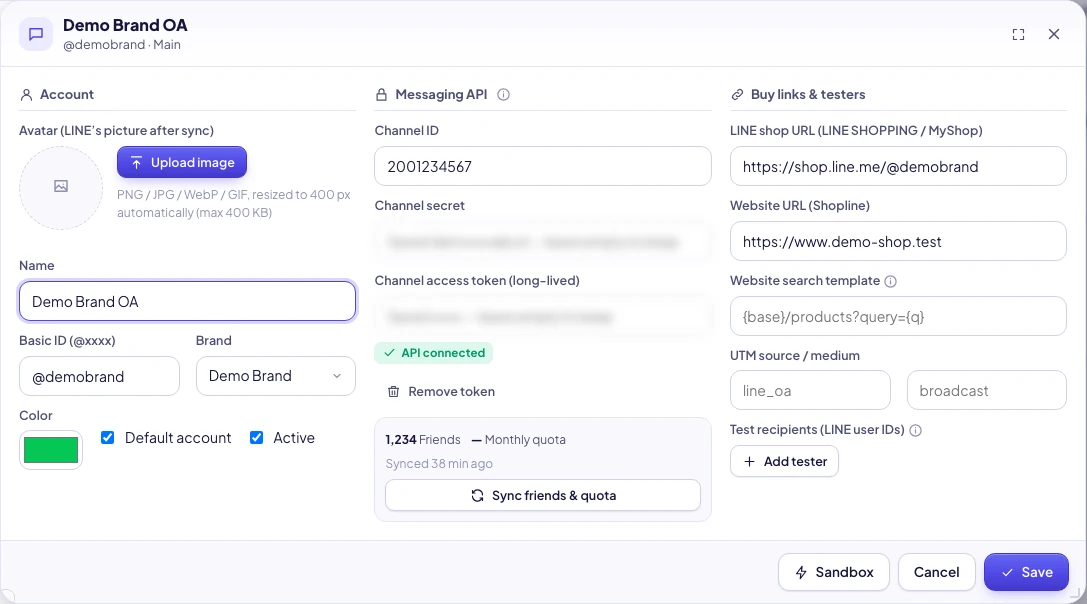
- Settings → Connections → "Communication" → LINE OA. The top of the window lists each brand's LINE OA channels.
- Click Add LINE OA (or click an existing account's card).
- Account: Name, Basic ID (@xxxx), Brand, color; tick Default account and Active if needed.
- Messaging API: enter Channel ID, Channel secret, Channel access token (long-lived) → Save. Saved values show "Saved … — leave empty to keep".
- Optional Buy links & testers: LINE shop URL, website URL (Shopline), UTM; for Test recipients, enter LINE user IDs (start with U, 33 characters in total; you can see your own under "Your user ID" at the bottom of LINE Developers → Basic settings; testers must add this OA as a friend first).
Step 6 · Turn on sync: verify
LINE OA has no "Test connection" button; use sync to verify:
- In the account window, click Sync friends & quota.
- Success: the card shows the OA name (@basic id), friend count and "used / this month's quota", the token tag reads API connected, and it shows "Synced just now".
- Send a test first: LINE broadcasts → Sandbox → pick a test recipient → Send test. If live sending isn't switched on on the server, the top of the page says nothing will really be sent to LINE, and the record is marked "dry run".
- Live broadcast: New broadcast → Edit → Submit for approval → a manager / the founder approves → it goes out at the scheduled time.
- Friends and broadcast results are read automatically every day (change the frequency in Data Center → LINE → LINE Official Account).
Troubleshooting
| What you see | Cause | What to do |
|---|---|---|
| No token (dry runs only) | The account has no long-lived token | Complete Step 5 |
| This account has no access token yet | No token when syncing or sending | Enter the token and save |
| LINE returned an error · 401 Authentication failed | Wrong token, or it was reissued or revoked | Copy the current token from LINE Developers; if someone else reissued it, tell Shopline to update it too |
| LINE returned an error · 403 | The token doesn't belong to this OA's channel | Check the Provider and channel |
| LINE returned an error · 429 | Too many requests, or the quota is used up | Try again later; if the quota is used up, wait for next month or upgrade your LINE OA plan |
| Can't reach LINE. Try again. | Network problem | Try again later |
| Channel ID should be digits | Something else was pasted | Copy the Channel ID from Basic settings |
| Invalid key (no spaces) | A space or line break was copied along | Copy it again |
| Invalid Basic ID | It must be in @xxxx format | Enter it exactly as shown in OA Manager |
| Invalid LINE user ID (U + 32 characters) | The tester ID is wrong | Use the 33-character user ID that starts with U |
| An account with this name exists | Duplicate name | Use another name |
| Keep at least one active default account | You tried to deactivate the only default account | Make another account the default first |
| This account has broadcasts — deactivate it instead | It has past broadcasts | Just untick Active |
| Too many accounts (max 30) / You've reached your plan's limit | The account limit is reached | Delete unused accounts or upgrade |
| Shopline's LINE notifications suddenly stop working | Someone changed the webhook or clicked Reissue | Reconnect LINE in the Shopline admin; don't touch either again |
| A broadcast has no stats | It reached fewer than 20 people | LINE doesn't provide stats for small audiences |
Advanced: legacy single-account keys are an early workspace-wide token, used only when the default account has no token. For new setups, enter keys per account.
Inside SellerTiger, press the headset button to ask the AI assistant or open a support ticket.