
Home — your daily overview
The Home page gathers everything that needs you today — your tasks, approvals waiting for you, the next few days of your schedule and key numbers from every module you can access — into one page of cards (widgets) that you can rearrange.
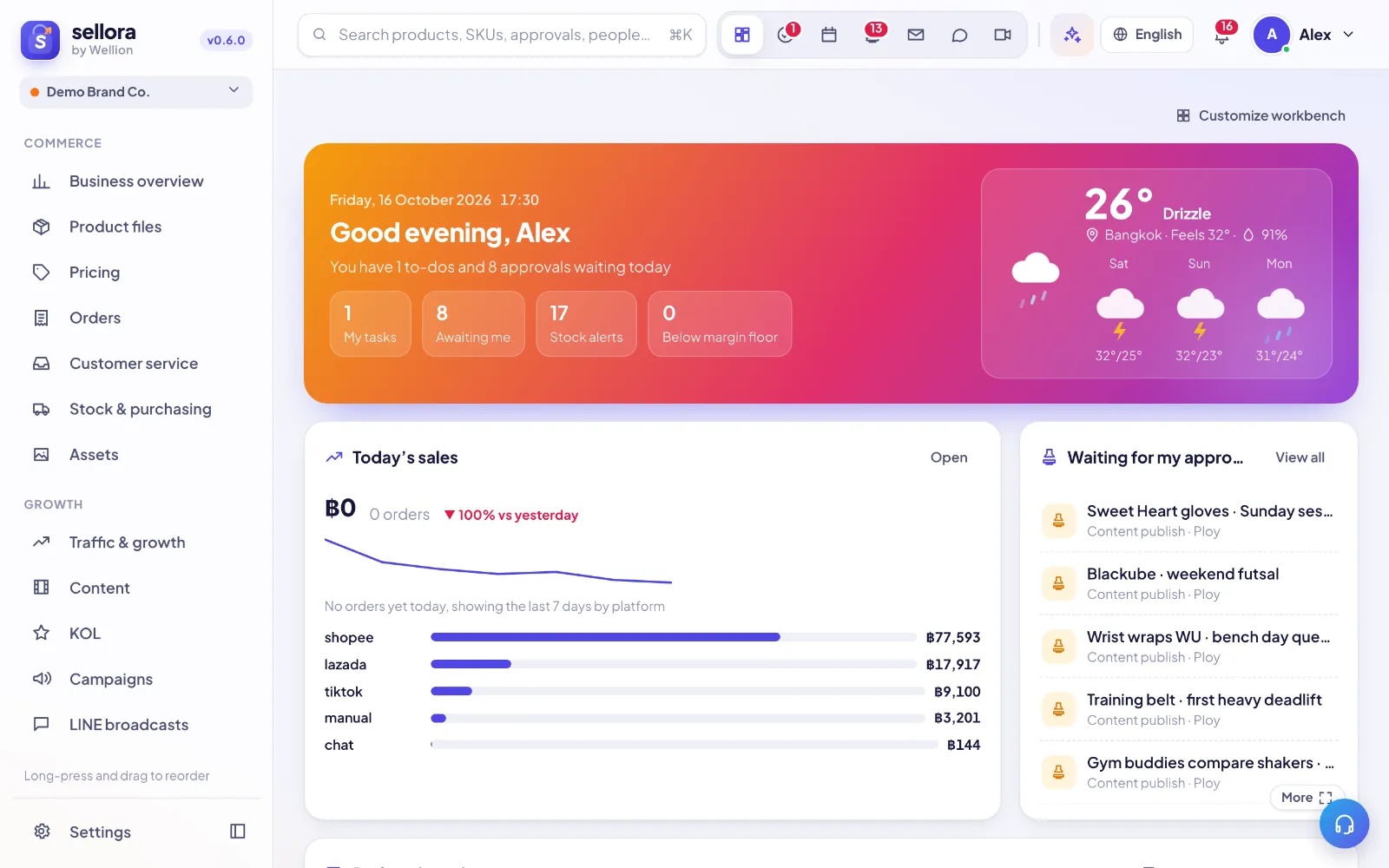
What you see on the Home page
Each card is a widget that pulls live data from another module. You only see widgets for modules your role is allowed to open, so two colleagues can have different Home pages. The most common widgets are:
| Widget | What it shows |
|---|---|
| Greeting & today | Date, weather and counts of your open tasks, items Awaiting me, Stock alerts, prices Below margin floor and unread messages. Click a number to jump to that module. |
| Announcements | Pinned and unread company announcements. |
| My tasks | Tasks assigned to you. Type in Add a task, press Enter to create one; tick the box to complete it. |
| Schedule | Meetings, tasks, content, KOL and approval dates for the next 3 days. |
| Waiting for my approval | Approvals waiting for you, plus the requests you submitted yourself. |
| Today's sales | Today's sales (GMV), order count, change vs yesterday, a 7-day trend and the split by platform. If there are no orders yet today, the platform split shows the last 7 days. |
| My OKRs & rank | Company OKR progress, your key results and your rank this month. |
| AI morning brief | An AI-written summary of today's priorities, risks and upcoming campaigns. Press Generate today's brief (or Regenerate). |
Other widgets include Stock & reorder, Content this week, KOL this month, Unread mail, Budget & profit, Finance reconciliation, Upcoming campaigns, LINE broadcasts, Social publishing queue, Meetings, Asset library and AI assistant. A widget whose module has no data yet shows "Nothing to show right now" and fills in automatically once data arrives.
Customize the layout
- Click Customize Home at the top of the page (or right-click any card and choose it).
- Drag cards to reorder them. On a phone or tablet, long-press and then drag. Arrow keys move the focused card.
- Use the controls at a card's top-right to pick a Size (Small, Medium (wide), Medium (tall), Large, Full width, Strip — each widget offers only the sizes that suit it) or to Hide it. You can also drag the corner handle to resize.
- Click Add widget to bring back hidden widgets. Widgets added to SellerTiger since you last customized are marked New.
- Click Done. Your layout is saved to your account and follows you to other devices.
Cards are packed left-to-right, top-to-bottom in your order, so the page never has gaps. On iPad the grid uses 6 columns and on a phone 1 column, in the same order.
Preset layouts and reset
In edit mode, Preset layouts offers ready-made layouts for Founder, Operations, Content, KOL and Warehouse. Your default is chosen from your role and team and is marked "(your default)". Reset to default clears your customization and returns to that default.
Search with ⌘K
Press ⌘K (Mac) or Ctrl+K (Windows) anywhere to open search. With an empty box it lists every page you can open. Type to search products, SKUs, approvals, people, tasks, content, creators, campaigns and purchase orders; use the arrow keys and Enter to open a result. ⌘J / Ctrl+J opens the AI assistant.
The dock and floating windows
The icons at the top right are your personal dock: Home, Tasks, My calendar, Approvals, Mail, Chat and Meetings. Badges show how many items are waiting.
Personal tools such as Tasks, My calendar, Approvals, Mail and Chat open as floating windows over the page you are on, so you can, for example, answer an approval while looking at the business overview. Windows can be moved, resized, minimized to the tray at the bottom right and maximized; size and position are remembered per tool.
Right-click a dock icon to:
- Minimize, maximize or restore its window
- Open as full page
- Choose Open from the dock as: floating window or full page
- Reset size and position, or close the window
Right-click menus
Right-click (or long-press on touch) almost anywhere for quick actions:
- On a widget: change size, Move to top, Refresh, Hide, or Customize Home.
- On a task in My tasks: open it or mark it done.
- On a sidebar item: open it, or reset the sidebar order (you can long-press and drag sidebar items to reorder them).
Tips and FAQ
- A widget is missing. Open Customize Home → Add widget. If it isn't listed, your role does not have access to that module — ask an admin to check Settings → Roles.
- Today's sales shows nothing. Sales come from synced orders; connect your shops or import an order export first (see Connect shops).
- Hid a card by accident? Click Undo on the notice that appears, or add it back from Add widget.
Tip: Keep the few cards you act on daily (My tasks, Waiting for my approval, Schedule) at the top, and shrink the rest to Small.
Inside SellerTiger, press the headset button to ask the AI assistant or open a support ticket.