
Asset library — images, videos, files and links
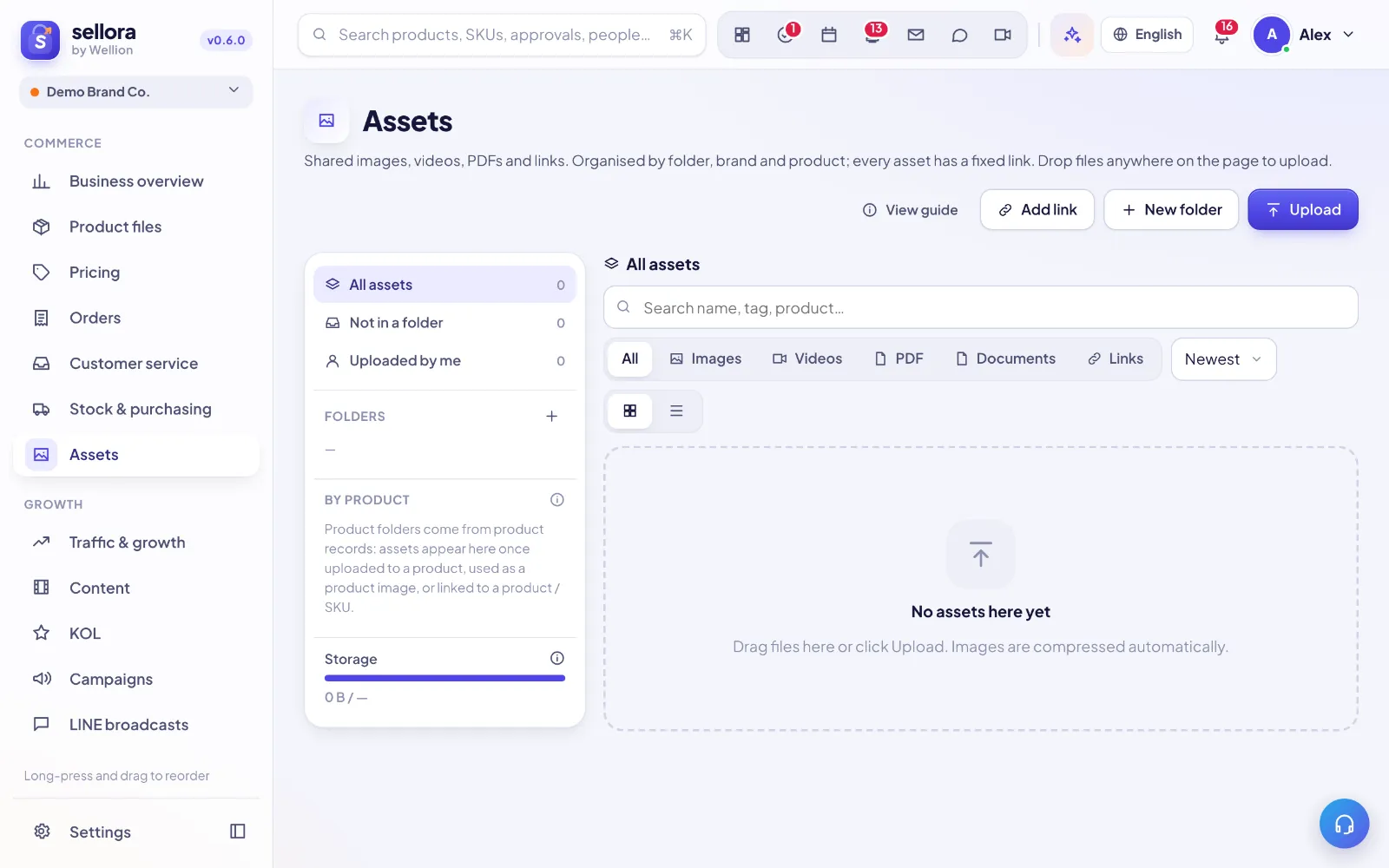
The asset library is your team's shared home for images, videos, PDFs, documents and links, organized by folder, brand and product. Every asset has a fixed link, and you can upload by dropping files anywhere on the page.
What you can store
| Type | Notes |
|---|---|
| Images | PNG, JPG, WebP and GIF. Compressed automatically in your browser before upload (longest side 2560 px). |
| Videos, PDF, Documents | Up to 50 MB per file. |
| Links | Canva, Google Drive, YouTube, TikTok and other outside assets. Only the link is stored, so it takes no space. |
SVG files are not accepted because they can carry scripts — export them as PNG instead.
Upload files
- Open Assets in the left sidebar and pick the folder (or product) you want to upload into.
- Drag files from your computer anywhere onto the page — the page shows Drop to upload to "…" — or click Upload, or paste an image from the clipboard. Up to 50 files at a time.
- Watch the progress list. Images show Compressed … → … with the before and after size. Failed uploads can be retried.
To save a link instead, click Add link, paste the address (it must start with http:// or https://) and optionally give it a name.
Tip: Identical files are stored only once, so uploading the same image twice does not use extra space.
Organize with folders, tags and products
The left panel has:
- All assets, Not in a folder and Uploaded by me quick filters.
- Folders — click New folder (the + button). Right-click a folder to add a New sub-folder, Rename, Upload into it or Delete folder. Deleting a folder never deletes files: its assets and sub-folders move up one level.
- By product — virtual folders grouped by brand. An asset appears here once it is uploaded to a product, used as a product image, or linked to a product / SKU.
- Tags — click a tag to filter.
- Storage — space used vs your plan's limit.
To move assets, drag cards onto a folder, or select them and choose Move to…. Select several with click, ⌘/Ctrl-click or Shift-click, or use Select all. With a selection you can also Add tags, Remove tags, link them to a product or delete them.
Use the search box (Search name, tag, product…), the type filter (All, Images, Videos, PDF, Documents, Links), the sort (Newest, Oldest, Name, Largest) and the Grid / List switch to find things quickly.
Preview, links and sharing
Click an asset to open its preview window with Details (type, size, dimensions, uploaded by, uploaded, folder, product, note), tags and where it is Used by.
There are two kinds of link:
- Copy link — a team link. Only signed-in teammates can open it.
- Public link — turn it On when a place outside SellerTiger needs a URL (for example LINE or a marketplace back office). Anyone with the link can see the file. Turning it Off breaks the link immediately. Then use Copy public link.
You can also Download, Open original, Rename, or use AI: describe use to get suggested uses, a better file name and tags.
Using assets in other modules
- Products and SKUs — choose Link to product / SKU…, or pick an image From asset library when setting a product image. Product thumbnails are compressed further (1200 px, about 300 KB).
- Content, campaigns, LINE and tasks — choose Use in… (content, campaign, LINE, task) on an asset, or use the asset picker (Choose an asset) inside those modules.
Every place that uses an asset is listed under Used by, so you can see the impact before changing or deleting it.
Deleting assets
Deleted files cannot be recovered. If an asset is in use, SellerTiger warns you (This asset is in use). Only leaders can Delete anyway: products / SKUs using it go back to their original synced image, and other links are removed.
Permissions and storage
- Members with view-only access see You can only view assets and cannot upload, move or delete.
- Storage used = the total size of all uploaded files (identical files count once; links take no space). The limit comes from your subscription plan; when the plan sets none, it is 5 GB.
FAQ
- My image looks smaller than the original. Images are resized to 2560 px on the longest side to keep the library fast. Upload very large print files as a PDF or link to them instead.
- The upload button is greyed out. Your role has view-only access to Assets — ask an admin.
- A product folder is missing under By product. Link at least one asset to that product first.
Inside SellerTiger, press the headset button to ask the AI assistant or open a support ticket.