
Learning center / Integration guides
Connect PEAK accounting
Connect your company's books in PEAK (peakaccount.com) to SellerTiger. For now the PEAK API is only used to verify the keys; receipts and expenses still come in through PEAK export files (that route works fully today, and entering the keys doesn't lock imports).
What you get
- Now: Test connection confirms the three credentials work. Use PEAK's receipt (sales) and expense export files to reconcile in Finance: orders are matched to receipts by the receipt's "อ้างอิงถึง (Refer to)" = the platform order number, and orders without a receipt are listed separately.
- Once API auto-sync is live: receipts, invoices and expenses are read automatically every day; file imports are only for backfilling older periods.
Before you start
- Who does it: someone with level-4 access to Settings in SellerTiger; on the PEAK side, a company admin who can open "Settings (ตั้งค่า)".
- Three credentials:
- Connect ID and Client Token: issued by PEAK to the integrating party. Contact PEAK support or your PEAK consultant to request PEAK Open API access (fees and timing are up to PEAK).
- User Token: you generate it in PEAK for this company's books (Step 1 below). Before you can, you need the Application Code your PEAK consultant sends you.
Step 1 · Credentials: generate the User Token in PEAK (checked against the PEAK help center on 2026-10-17)
- Ask your PEAK consultant for the Application Code first (PEAK emails it to you).
- Sign in to PEAK as an admin and open the company you want to connect.
- Settings (ตั้งค่า) → External system connection settings (ตั้งค่าเชื่อมต่อระบบภายนอก) → Connect external applications (เชื่อมต่อแอปพลิเคชันภายนอก) → click Connect your application (เชื่อมต่อแอปพลิเคชันของคุณ).
- Enter the Application Code → Next (ถัดไป) → confirm the app name → Confirm (ยืนยัน).
- Tick I acknowledge… (ฉันรับรู้…) → Confirm (ยืนยัน) → Connect (เชื่อมต่อ).
- On the app details page, click the eye icon to show the User Token and copy it. You can view it again later. Each PEAK company has its own User Token.
Step 2 · Encryption / Webhook: not needed
Step 3 · Permissions: granted by PEAK according to your access
Step 4 · Callback: not needed
Step 5 · Enter and test in SellerTiger
- Settings → Connections → "ERP & accounting" → PEAK.
- Under Keys, fill in
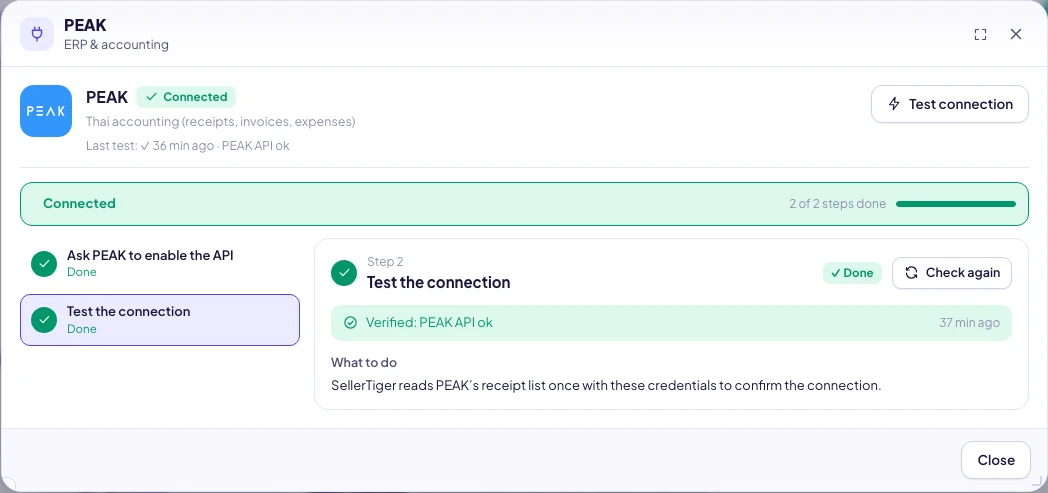
peak_connect_id(Connect ID),peak_client_token(Client Token) andpeak_user_token(User Token), clicking Save for each field. - Click Test connection (SellerTiger queries today's receipts, read-only). Success: the top of the window shows "Last test: ✓ · PEAK API ok" and the tile turns Connected.
Step 6 · Turn on sync: use export files for now
- In PEAK, export Revenue → Receipt, and your expenses.
- In Data Center → Finance → PEAK receipts (or PEAK expenses), click Upload myself and follow the steps in the window to import.
- In Finance reconciliation you'll see the month's receipts, with orders missing a receipt listed separately; you can generate a file to import back into PEAK to fill the gaps.
Troubleshooting
| What you see | Cause | What to do |
|---|---|---|
| Test failed · peak_http_error: 401 / 403 | One of the three is wrong, expired, or not from the same access grant | Copy all three again (no spaces), save, and test again |
| Test failed · peak_unreachable | Can't reach the PEAK server | Try again later |
| Test failed · peak_error | PEAK returned a business error | Read the message after it; usually the User Token doesn't belong to this company |
| Not configured yet — fill in the credentials first | Not all three are filled in | Fill in the missing ones |
| Can't find "ตั้งค่าเชื่อมต่อระบบภายนอก" | The account isn't an admin, or your PEAK version differs | Use an admin account; if you still can't find it, ask your PEAK consultant |
| Can't read this file | The upload isn't an original PEAK export | Export again from PEAK and don't edit the header row |
Still need help?
Open in SellerTigerInside SellerTiger, press the headset button to ask the AI assistant or open a support ticket.