
Connect Google (sign-in, Calendar, Gmail)
SellerTiger provides the official Google app. Your company never creates a Google Cloud project or OAuth client and never enters any keys. The founder clicks Turn on Google interop in one click, and each member binds their own Google (Bind Google). For the difference between the two layers, see Personal binding vs team connection.
What it does
- Sign in with Google to SellerTiger.
- Calendar: Google primary calendar ⇄ My calendar (30 days back to 90 days ahead). With two-way on, events you create, edit or delete in SellerTiger are written to your Google Calendar (to Lark if you also bound Lark).
- Gmail: connected to SellerTiger Mail; mail you send appears in your Gmail “Sent” folder, drafts in Gmail Drafts.
Before you start
- You can only turn it on when “Settings → Connections → Google Workspace” shows Provided by SellerTiger. If it shows Coming soon, try again later.
- Your company uses Google Workspace and the admin restricts third-party apps: ask your Workspace admin to set SellerTiger to “Trusted” in Google Admin console → Security → Access and data control → API controls → Manage Third-Party App Access. Otherwise members see “This app is blocked by your administrator” when they authorize.
Steps 1–5: done by SellerTiger
The project, APIs, consent screen, client and publishing are all done by SellerTiger on its own Google app.
Step 6 · Turn on sync
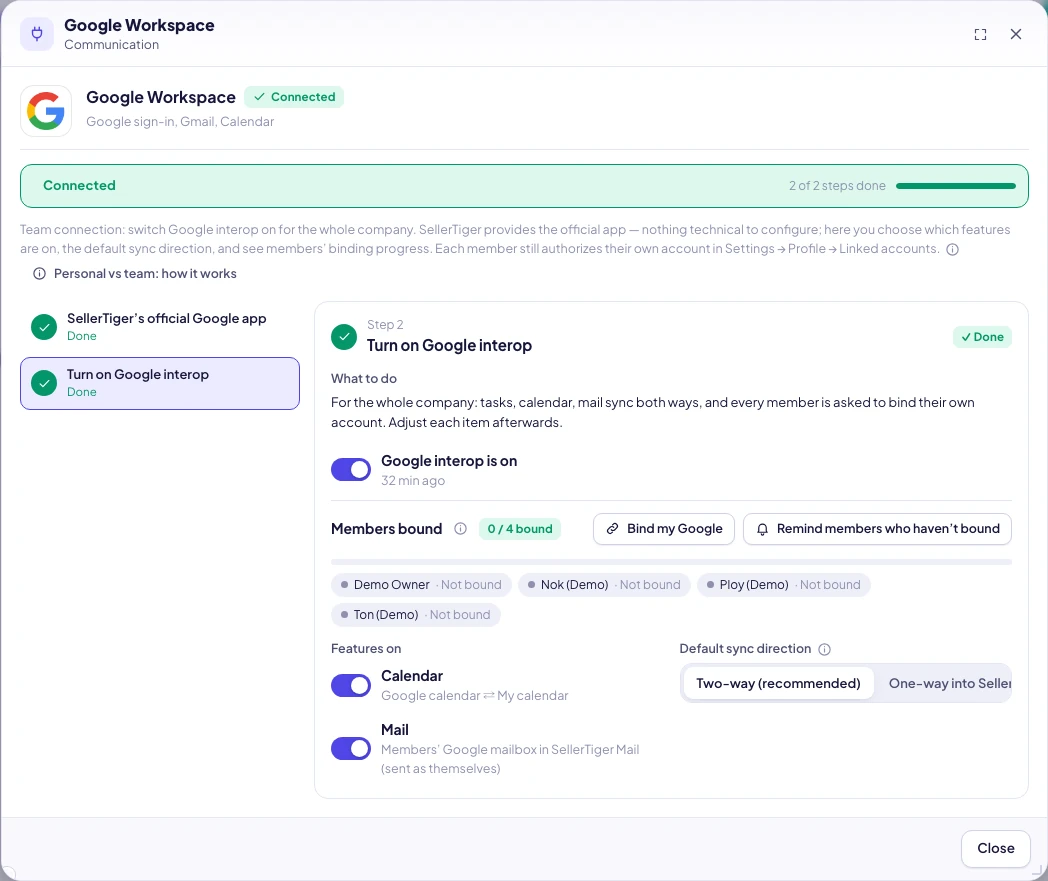
6a (founder) Turn it on in one click
- Settings → Connections → “Communication” → Google Workspace.
- Click Turn on Google interop in one click (calendar and mail on, two-way sync). Every member gets a “Bind my Google” notification.
- The window shows Members bound n / m bound. You can switch off single features, change to one-way, remind members who haven’t bound, or turn it all off.
6b (each member) Bind my Google
- Settings → Profile → Linked accounts → Bind Google → read what will sync → Continue to Google.
- Choose your own Google account → check all requested permissions (Calendar, Gmail) → Continue / Allow.
- Back in SellerTiger, you see “Google bound — first sync running”.
Check that it works
- The Google card in Linked accounts shows “Linked as your email” and the last sync time; your Gmail appears in Mail.
- Create an event in SellerTiger: it appears in your Google Calendar within seconds.
Mail (Gmail)
There is no separate mail tile any more: mail is part of the Google Workspace tile (and of Lark for Lark Mail). Turn on interop with Mail enabled in step 6; each person's Gmail then arrives with Bind Google (Settings → Profile → Linked accounts). The tile's Mail section links to binding, the signature and the Mail page.
Troubleshooting
| Message you see | Cause | What to do |
|---|---|---|
| Coming soon | SellerTiger’s Google app isn’t live yet | Try again later |
| This app is blocked by your administrator / Access blocked | Your company’s Workspace restricts third-party apps | The Workspace admin sets SellerTiger to Trusted |
| Your company hasn’t turned on Google interop | The team switch is off | The founder does 6a first |
| Re-authorize to turn on two-way sync | Your company turned on two-way | Click Re-authorize and allow once more |
| Access expired — re-authorize | The Google token was revoked or expired | Click Re-authorize |
| Only Calendar syncs, no Gmail | Gmail permissions weren’t checked during authorization | Re-authorize and check everything |
| That Google email isn’t verified yet | The Google account email isn’t verified | Verify the email in Google first |
| That account is already bound to another SellerTiger user | The same Google account is bound to someone else | Unbind it from the other user first |
Unbinding revokes access at Google and stops sync; synced events and mail stay in SellerTiger.
Inside SellerTiger, press the headset button to ask the AI assistant or open a support ticket.