
Printing settings
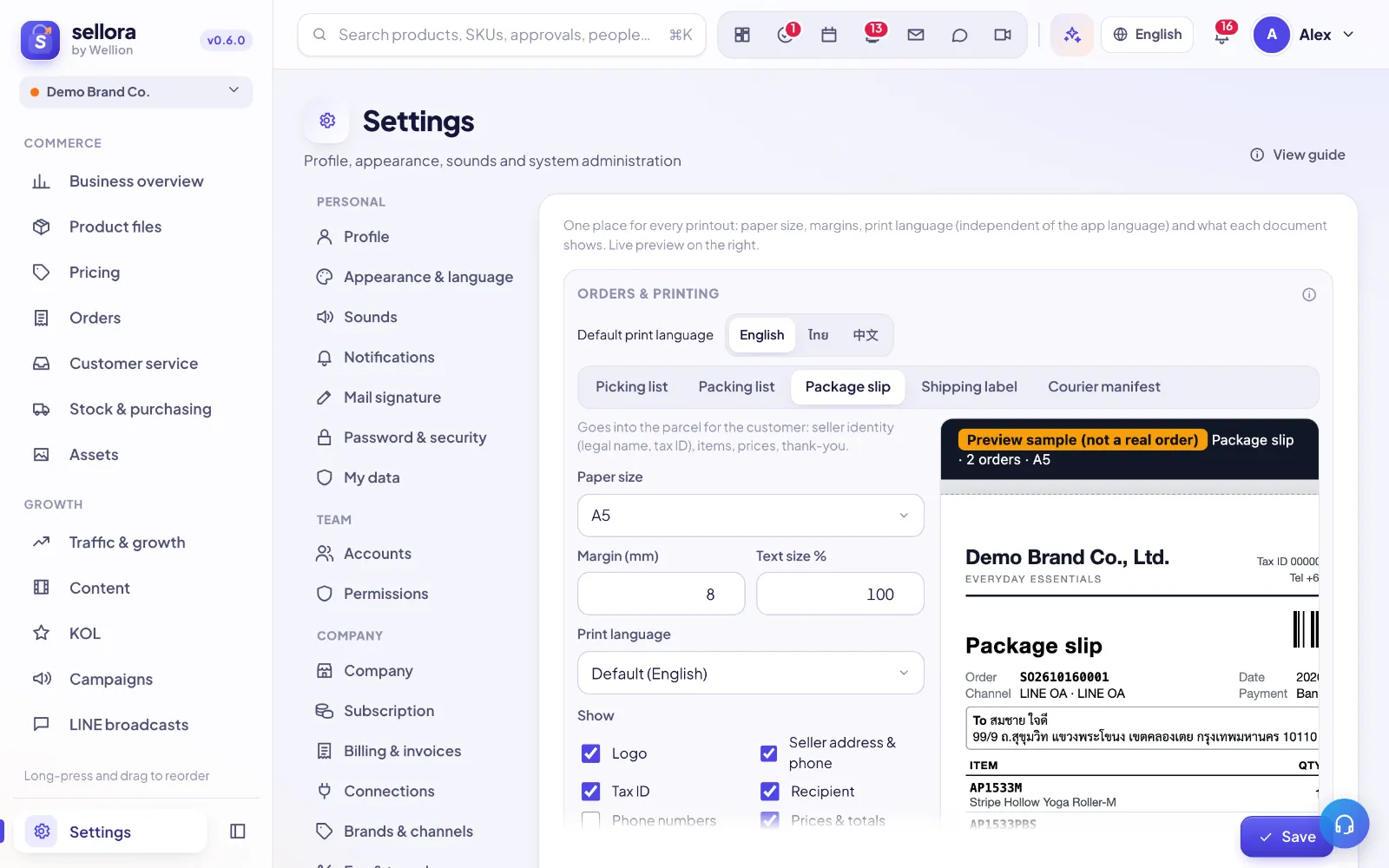
Settings → Orders & printing is one place for every order printout: paper size, margins, print language and what each document shows, with a live preview next to the settings. Company letterheads (purchase orders, stock count sheets, invoices) take their identity from Settings → Company instead.
Who can change it
Anyone who can see Orders can open the page and look at the settings. Only leaders (and the founder) can change them; for everyone else the fields are read-only with the note "Only leaders can change these settings". Click Save at the bottom when you are done.
Documents you can print
Pick a document in the tabs at the top of the Orders & printing card. Each one has its own settings:
| Document | For | Default paper |
|---|---|---|
| Picking list | The picker: every SKU of the batch, summed and sorted by bin — one walk through the warehouse | A4 |
| Packing list | The packer: one page per order with bins, images and check boxes, no prices | A4 |
| Package slip | Goes into the parcel for the customer: seller identity (legal name, tax ID), items, prices, thank-you | A5 |
| Shipping label | A generic label when there is no platform waybill (manual orders, own delivery) | 100×150 thermal |
| Courier manifest | The handover list the courier signs | A4 |
Marketplace orders normally use the platform's own waybill; the generic shipping label is for orders that don't have one.
Paper size, margin and text size
For the selected document:
- Paper size — A4, A5, A6, 100×150 thermal, 100×100 thermal, 80 mm receipt roll, or Custom (mm) with your own Width (mm) and Height (mm).
- Margin (mm) — the white border around the page.
- Text size % — scale the text from 70 % to 130 % if it is too small or does not fit.
The preview on the right redraws as you change anything, using sample data.
Print language
- Default print language — English, ไทย or 中文, used by every document. It is independent of the language you use the app in, so the team can work in one language and print in another.
- Print language per document — leave it on Default or pick a different language for that document only, for example Thai package slips with English picking lists.
What each document shows
Under Show, tick the parts to print. The options depend on the document:
- Picking list: product images, bins, order numbers, check boxes, group by bin, barcode.
- Packing list: logo, product images, bins, recipient, notes, check boxes, barcode.
- Package slip: logo, seller address & phone, tax ID, recipient, phone numbers, prices & totals, notes, barcode, thank-you line. Thank-you text lets you write your own message (empty = default).
- Shipping label: logo, sender, phone numbers, item list, COD amount, weight, notes.
- Courier manifest: logo, recipient, item list, COD amount, signature lines.
Seller identity on printouts
Seller identity on printouts sets the company details shown on package slips, manifests and labels: Legal company name, Local-language name (Thai), Tax ID, Phone, Email, Website, Address and Logo.
Every empty field uses your company profile from Settings → Company (the greyed placeholder shows what will be used). Fill a field here only when order documents should show something different — for example a trading name. If no logo is set here, the company logo is used.
Sender (on labels) works the same way for the sender block on shipping labels: empty = the company letterhead.
Company letterheads
Documents outside the order flow — purchase orders, stock count sheets, invoices and receipts — use the letterhead from Settings → Company: legal names, address, tax ID, head office / branch and the wide logo. Preview them there with the A4 · TH, A4 · EN and A5 · TH buttons. See "Company profile and letterhead".
Other settings on this page
The same page holds a few order-handling settings that affect what gets printed:
- Workflow — require a scan check when packing, process orders automatically when scanned, or mark an order packed as soon as its label is printed; and Overdue after (hours).
- Manual orders — the order number prefix, the default channel, and whether handing over takes stock out (for when no ERP syncs stock).
- SKU bins — paste one
SKU, binper line. Picking lists are sorted by bin, so filling these in makes the picker's route shorter.
Tip: Print one test page on the real printer after changing paper size. Thermal printers often need the matching paper size selected in the printer's own settings as well.
Inside SellerTiger, press the headset button to ask the AI assistant or open a support ticket.