
Learning center / Integration guides
Connect Facebook Pages and Instagram (Meta)
The Meta app used for posting is provided by SellerTiger. You don’t need to create an app in Meta for Developers or enter an App ID or App Secret — just authorize, with your own Facebook account, the Pages and Instagram accounts you want to manage.
What it does
- Publishing: posts you schedule in Content → Social publishing are published to your Page and Instagram.
- Followers: Page followers and Instagram followers are read automatically every day (change the frequency in Data Center → Social media). Follower counts of connected accounts can no longer be entered by hand.
- Post performance: reach, views and engagement are read for posts published through SellerTiger. Posts made directly on Facebook / Instagram still need to be entered by hand or read from the public page.
Before you start
- Who does it: someone with level 3 permission on “Content” in SellerTiger who is also an admin of the Page on Facebook (full control).
- Instagram: must be a professional account (business or creator) and already linked to this Page in Meta.
- Brands & channels: the brand already has the Facebook and / or Instagram social channel added.
- Plan: the number of social accounts is limited by your plan.
- Status: when “Settings → Connections → Meta (Facebook / Instagram)” shows Coming soon, SellerTiger’s Meta app is still in review and you can’t connect yet.
Steps 1–5: done by SellerTiger
The app, permissions, callback URL and Meta review are handled by SellerTiger. When you authorize, Meta lists the permissions SellerTiger requests (Page list, posting, reading insights, Instagram publishing and insights).
Step 6 · Connect accounts
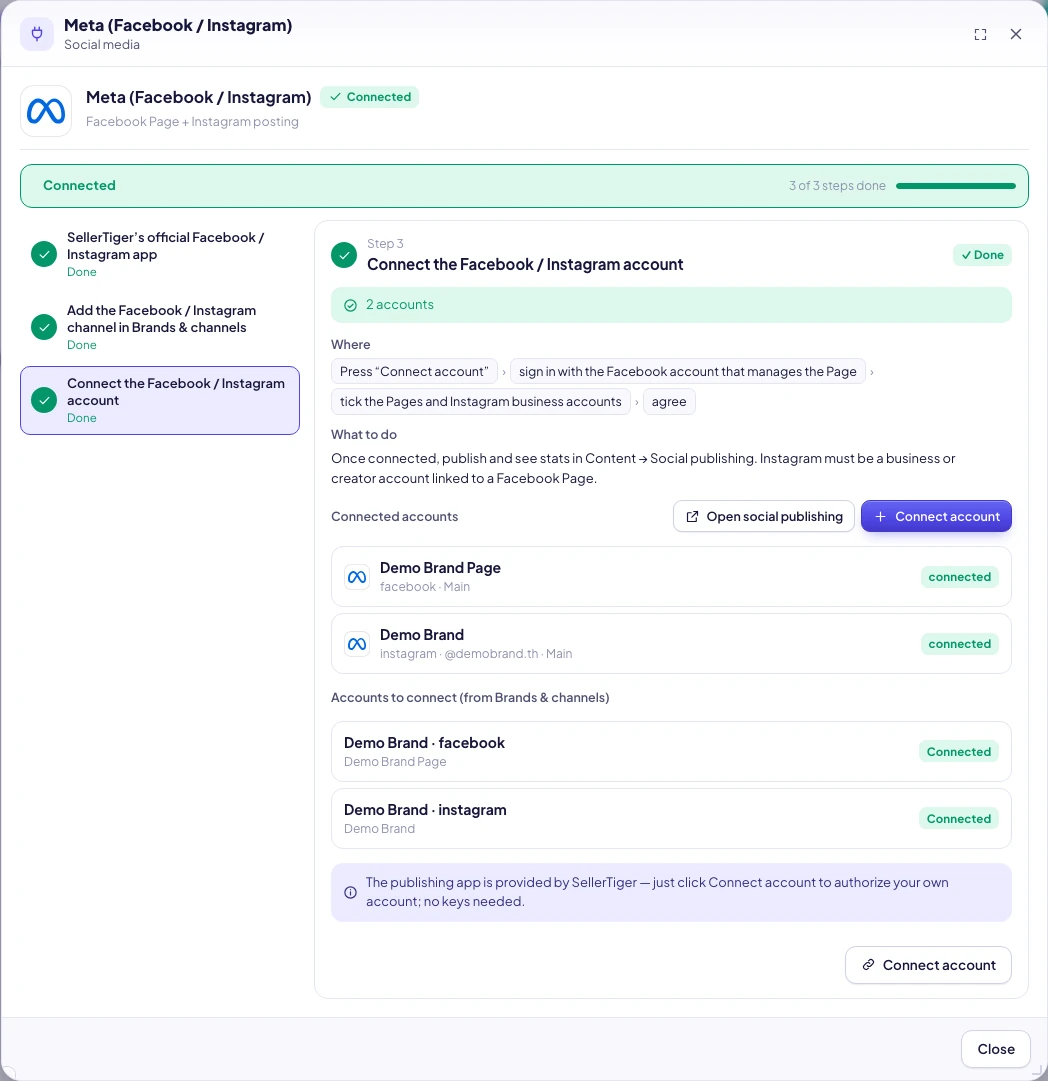
- Settings → Connections → “Social media” → Meta (Facebook / Instagram) → Connect account (or click Connect Facebook + Instagram in Content → Social publishing).
- Choose Which brand are these accounts for (optional) → Continue to authorize.
- Log in with Facebook, choose the Pages and Instagram accounts to authorize (check only the ones you’ll use), keep all permissions on → Save / Done.
- Back in SellerTiger, you see “n accounts connected”. Connected accounts in the window lists the name, network, @username, brand and status.
Check that it works
- The next day, follower counts appear in Traffic & growth.
- Schedule a test post; after it’s published, data appears on the content card. When the server is in dry-run mode, publishing is only recorded, not actually sent (the page tells you).
Troubleshooting
| Message you see | Cause | What to do |
|---|---|---|
| Coming soon / the Connect account button is gray | SellerTiger’s Meta app isn’t open yet | Try again later |
| No Facebook Pages you manage were found | The Facebook account you logged in with isn’t an admin of any Page, or you didn’t check the Page during authorization | Use a Page admin account and check the Page when authorizing |
| Instagram account not shown | The IG account isn’t a professional account or isn’t linked to the Page | Switch to a professional account in Instagram settings and link it to the Page, then click Connect account again |
| n account(s) not connected: your plan’s social account limit is reached | Your plan’s account count is full | Disconnect accounts you don’t use or upgrade |
| The authorization link expired, please connect again | You stayed on the consent screen too long | Click Connect account again |
| Dry-run mode does not connect real accounts | The server is in dry-run mode | Contact SellerTiger |
| This social channel isn’t turned on for this brand | The brand has no Facebook / Instagram channel | Add it in Brands & channels |
| The account shows Expired | You changed your Facebook password, or removed the app or permissions | Click Connect account once more |
| No Page insights data | Meta only provides insights for Pages with a certain number of followers | They appear once followers grow |
Ad data
A direct Meta ads connection isn’t live yet. Export ad spend as CSV / Excel from Ads Manager and import it in Data Center → Finance → Ad data → Import ad data.
Still need help?
Open in SellerTigerInside SellerTiger, press the headset button to ask the AI assistant or open a support ticket.