
Business overview — sales KPIs explained
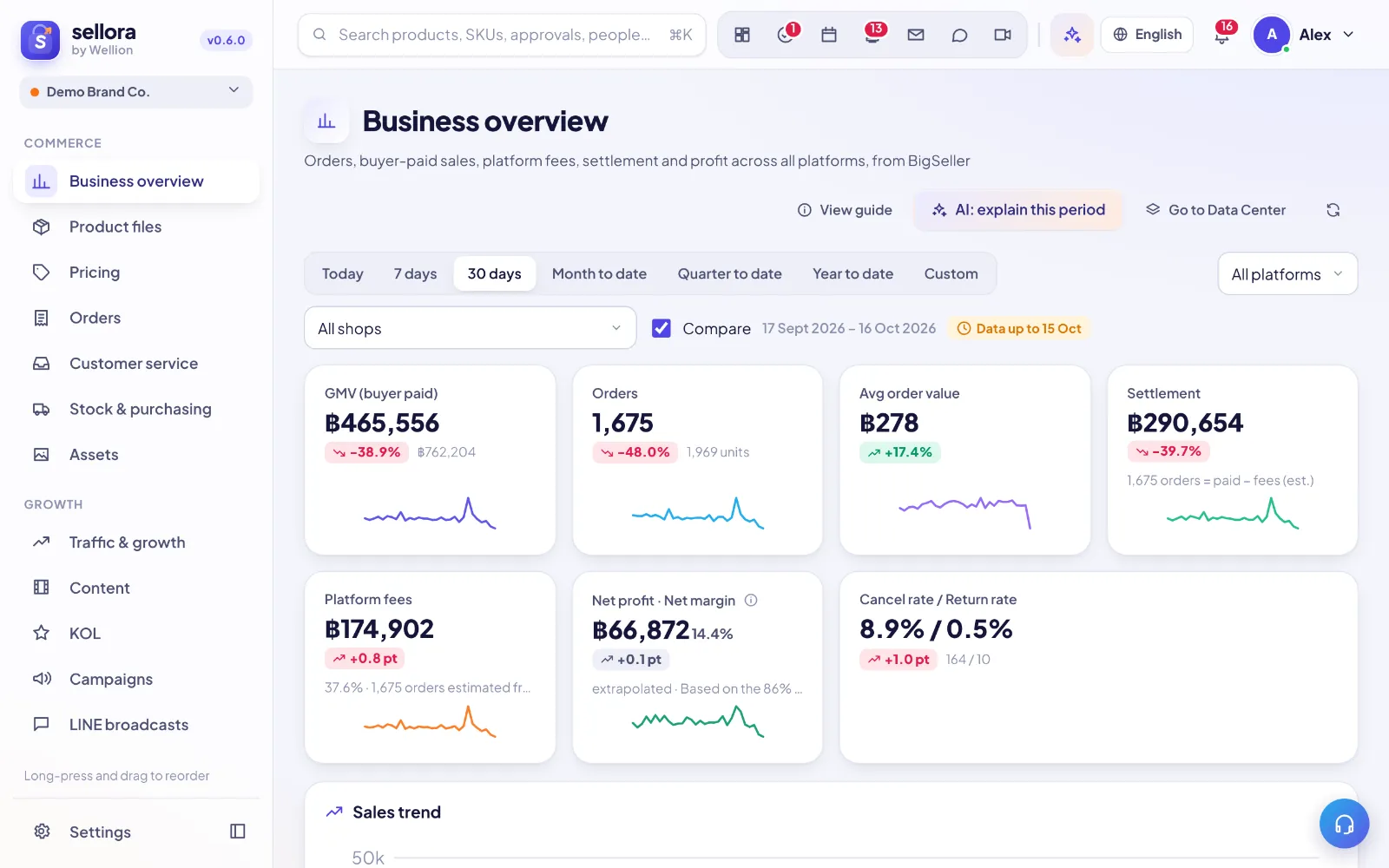
The Business overview shows orders, buyer-paid sales, platform fees, settlement and profit across all your sales platforms for any period, with a comparison to the previous period of the same length. This article explains where each number comes from and how to read it.
Where the data comes from
All figures are calculated from your orders in SellerTiger. Orders arrive in two ways:
- API sync — add your BigSeller app id / app key in Settings → API and authorize. Orders then sync automatically every day at 06:00.
- File import — without an API connection, press Import data, choose the source system and Orders (or Inventory), export the file as the window explains and drop it in. Order exports in xlsx or csv with Chinese, English or Thai headers are supported. Orders are de-duplicated by order number, so re-importing a file never double counts.
Manual orders created in Orders are included too (shown as Manual). If the newest order is older than the end of your selected period, a Data up to … badge warns you that the latest data has not arrived yet.
Choosing the period and filters
Use the toolbar at the top:
- Pick a period: Today, 7 days, 30 days (the default), Month to date, Quarter to date, Year to date or Custom. With Custom, choose a start and end date.
- Narrow to one platform with All platforms, and to one shop with All shops. Shops are grouped by the sales channels set up in Settings → Brands & channels; shops not linked to a channel appear under Other / not configured.
- Tick Compare to show the change against the previous period. The previous period is the same number of days immediately before your selected range (for example, 30 days vs the 30 days before that).
Your period and Compare choice are remembered on this device.
What each number means
| Card | Meaning |
|---|---|
| GMV (buyer paid) | The total amount buyers paid for valid orders. Canceled, unpaid and returned orders are excluded. |
| Orders | Number of valid orders; the small line below shows total Units sold. |
| Avg order value | GMV ÷ Orders. |
| Settlement | What the platforms pay out to you. When the platform's actual settlement figure is not available, SellerTiger estimates it as buyer paid − platform fees and says how many orders were estimated. |
| Platform fees | Commission and other platform charges, with the Fee rate (fees ÷ GMV). Real fees are used when the order data includes them; otherwise they are estimated from the fee rules in Settings, and the card shows how many orders were estimated. |
| Net profit · Net margin | Settlement minus product cost (COGS). Net margin = net profit ÷ GMV. Only visible to roles allowed to see costs. If some orders have no product cost, the figure is extrapolated from the orders that do, and the card shows the coverage. |
| Cancel rate / Return rate | Canceled or returned orders as a share of all orders in the period. Lower is better. |
| Ad spend / ROAS | Appears only when ad spend is recorded (from the Budget ledger or ad metrics). ROAS = GMV ÷ ad spend; with cost access you also see net profit after ads. |
A green or red arrow on each card shows the change vs the previous period. Rates such as fee rate and cancel rate change in percentage points (pt).
Charts and tables below the KPIs
- Sales trend — daily GMV by platform.
- Platforms & shops — each platform's share of sales.
- Net profit by platform (or Sales by platform without cost access) — fees, settlement and profit per platform.
- Contribution by tier and Brand × tier — sales split by the price tiers set in Pricing (Hero, New hero, Regular, Clearance); SKUs not yet set up in SellerTiger show as Not in SellerTiger.
- Net margin trend (or Order value and fee rate trend) — daily, or weekly for long periods.
- Health check — Hero SKUs out of stock or with under 14 days of stock, and SKUs below their net-profit floor. Click a row to open the SKU.
- Top products — best sellers by SKU or by Products.
Click any SKU to open its details; right-click works in lists, as elsewhere in SellerTiger.
AI: explain this period
Press AI: explain this period to get a written explanation of the selected range — what changed vs the previous period and why (platform mix, fees, cancellations, margin). It uses the same filters you have selected.
Tips and FAQ
- The page says "No orders yet". Connect the API in Settings → API or use Import data.
- Why does GMV differ from the marketplace's seller center? SellerTiger counts only what buyers actually paid on valid orders — canceled, unpaid and returned orders are excluded — and platform subsidies or seller-center definitions may differ.
- Why is net profit marked "extrapolated"? Some SKUs have no cost price. Add costs in Products / Pricing to make the figure exact.
- Who can see profit? Only roles allowed to see costs (Settings → Roles). Others see sales, fees and settlement only.
Tip: Compare Month to date with Compare ticked each Monday to spot fee-rate or cancel-rate changes early.
Inside SellerTiger, press the headset button to ask the AI assistant or open a support ticket.