
Fee rules and pricing strategy
Settings → Fee & tax rules holds two kinds of numbers that every price and margin in SellerTiger depends on: what each platform charges you (its fees) and what you decide to spend to sell there (vouchers, creator commission, ads). Change them here and every net margin in Pricing updates immediately.
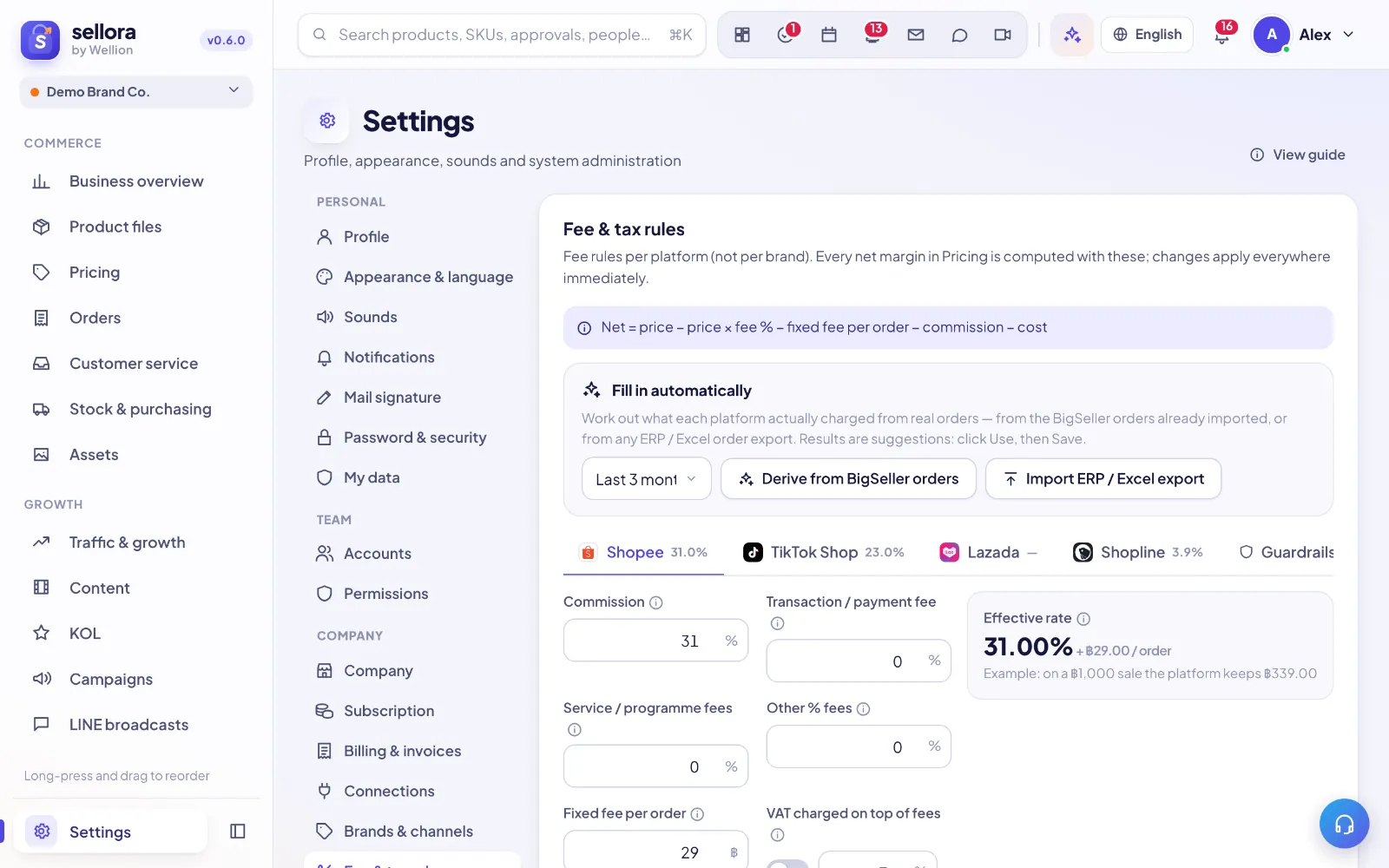
Where to find it and who can edit
Open Settings → Fee & tax rules (in the Company group). It is available to the founder and people with the Manage level on Settings.
Across the top is one tab per sales platform you set up in Brands & channels (for example Shopee, TikTok Shop, Lazada, your website). Offline, wholesale and custom channels share one tab. The last tab, Guardrails, holds your minimum margins. Each platform tab shows its current effective rate, so you can compare platforms at a glance. Fees are per platform, not per brand.
Tip: If no tabs appear, add your sales channels in Settings → Brands & channels first.
Platform fees
On each platform tab, enter what the platform deducts. Use percentages of the sale price unless noted.
| Field | What to enter |
|---|---|
| Commission | The platform's cut of each sale (Shopee calls it commission / management fee, TikTok "referral fee", Lazada "commission"). |
| Transaction / payment fee | Payment processing, usually 2–3 %. |
| Service / program fees | Fees for programs you joined, such as free-shipping or cashback programs. |
| Other % fees | Any other percentage the platform takes. |
| Fixed fee per order | A flat amount per order, VAT included — for example an order processing fee. |
| VAT charged on top of fees | Switch on if the platform adds VAT to its fees (Thai platforms usually add 7 %); the rate is editable. |
| Platform subsidy (buyer pays less) | TikTok Shop only: the share platform vouchers take off the buyer's price. |
| Notes | Anything worth remembering, such as the date of the last fee change. |
A blank field means "not set yet". It is not saved as 0 %, but pricing counts it as 0 until you fill it in, and a banner reminds you.
How fees turn into margin
SellerTiger first combines the percentages into one Effective rate:
Effective rate = (commission + transaction + service + other) × (1 + VAT, if VAT is charged on fees)
Then, for every SKU and platform, Pricing calculates:
Net = price − price × effective rate − fixed fee per order − commission − cost
Here commission is the creator / affiliate commission from your strategy (below) and cost is the product cost.
Example: commission 6 %, payment 3 %, VAT on fees switched on at 7 %, fixed fee ฿5. Effective rate = (6 % + 3 %) × 1.07 = 9.63 %. On a ฿1,000 sale the platform keeps ฿96.30 + ฿5 = ฿101.30. The tab shows this as "Example: on a ฿1,000 sale the platform keeps ฿…".
Fill in fees automatically
Not sure what a platform really charges? Under Fill in automatically, SellerTiger can work it out from real orders:
- Derive from BigSeller orders — uses the completed orders already imported from the ERP that carry fee data. Choose the period (last 1, 3, 6 or 12 months).
- Import ERP / Excel export — upload any
.xlsxor.csvorder or settlement export. SellerTiger guesses which column is the platform, the amount, commission, transaction fee, service fee or total fee; confirm or correct the mapping. If the file has only one platform, pick it as the default platform.
The result table shows, per platform, the orders, item total, fees charged, the effective rate and a breakdown. These are suggestions: click Use to fill them into the tab, review, then click Save.
Guardrails
The Guardrails tab sets the lines your prices should not cross:
- Net margin floor — the minimum net margin per channel after fees and cost. Prices below it are flagged red in Pricing.
- Hero price parity tolerance — how far the buyer-paid price of hero products may differ between TikTok Shop and Shopee.
- Net floors per product tier (hero, new hero, clearance, regular) are shown here for reference and are set in Pricing; a tier without its own floor uses the general guardrail.
Strategy defaults
Under each platform tab, ② Strategy defaults holds your own choices — not platform fees. Every SKU in Pricing inherits these values (shown in grey as "default") unless it has its own value, which goes through price-change approval.
- Per-order costs — costs that follow every order as a % of the price: shop vouchers, coins cashback, website discount, and creator / affiliate commission (open and targeted). Each can be switched on or off.
- Budgeted costs (ads) — ads are a period budget, not tied to single orders. Choose From budget (enter a Monthly ads budget; SellerTiger divides it by expected monthly sales — by default your last 30 days of sales — to get a % of price) or Fixed %. You can optionally set a budget per brand; brands left blank use the platform budget.
- Per-tier override — give hero, new hero, clearance or regular products their own values; blank means the platform default.
- Plan vs actual tolerance — once real orders come in, Pricing compares actual rates with this plan and flags red when an actual rate is above the plan by more than this many percentage points (1 point by default).
Your own website, Shopline, Shopify and LINE share one set of strategy defaults. Click Save at the bottom once: fees and strategy are saved together.
Tips
- Update fees the day a marketplace changes them — margins everywhere use the new rate immediately.
- Use Derive or Import every few months to check your entered rates against what was really charged.
- For the margin view per SKU and the actual-vs-plan check, see "Pricing and margin calculator".
Inside SellerTiger, press the headset button to ask the AI assistant or open a support ticket.