
Mail — Gmail and Lark Mail inside SellerTiger
Mail brings each person's own Gmail or Lark Mail into SellerTiger, so you can read, reply, label and snooze without switching apps — and link any conversation to a supplier, creator, purchase order, task or other SellerTiger object. Only you can read your mail.
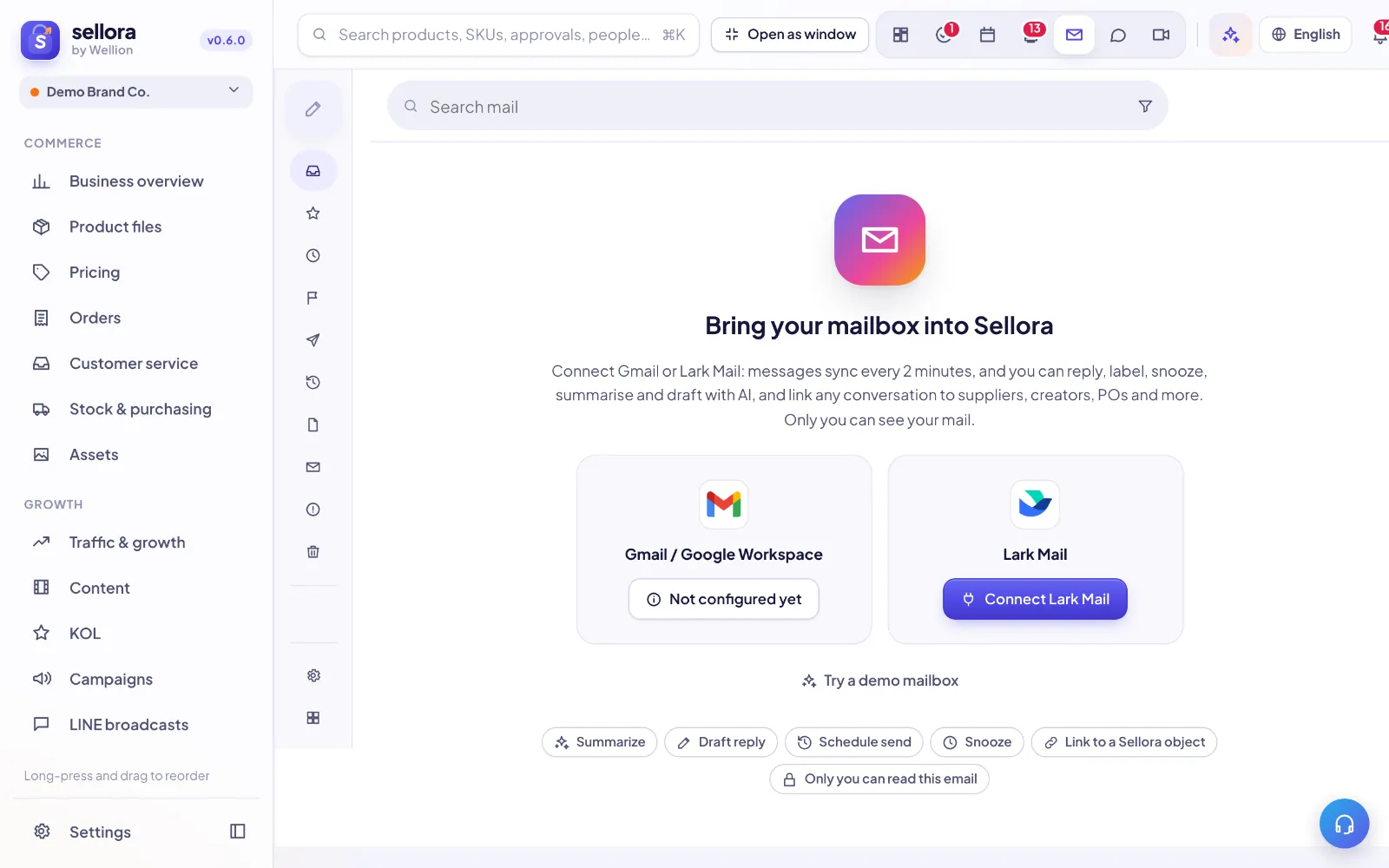
Connect your mailbox
- Open Mail from the dock (top right).
- Click Connect Gmail or Connect Lark Mail and sign in with your own account.
- SellerTiger syncs the last 30 days first (Mailbox connected. Syncing the last 30 days…), then checks for new mail every 2 minutes.
Each person connects their own mailbox; you can add more with Add account and switch between them, or view All inboxes together. If you signed in to SellerTiger with Google or Lark, binding that account under Settings → Profile → Linked accounts connects your mailbox automatically.
If the buttons show Not configured yet, the founder or an admin must first enter the Google or Lark app credentials under Settings → API (the How to enable … guide in Mail lists the steps and the redirect URI). Try a demo mailbox lets you explore without connecting.
Tip: If access expires you'll see Sign in again — sync pauses until you do. Disconnect removes synced mail from SellerTiger but never deletes anything in the mailbox itself.
Reading and organizing
The folders mirror your mailbox: Inbox, Starred, Snoozed, Important, Sent, Scheduled, Drafts, All mail, Spam and Trash, plus your Labels (create one with New label). Every action — Archive, Delete, Report spam, Mark as read / unread, Star, Mark as important, Label as — is written back to Gmail or Lark.
- Snooze hides a conversation until Later today, Tomorrow, This weekend, Next week or a time you pick.
- Search mail supports Advanced search (from, to, subject, words, date, attachments, unread) and operators such as
from:has:attachmentis:unreadnewer_than:7d. - Images from unknown senders are hidden for privacy; click Show images or Always show images from ….
- Press ? for Keyboard shortcuts (for example
j/kto move, Enter to open). - AI triage writes a one-line summary and a priority for unread conversations on the page.
Mail settings controls the Sender name, Reading pane (right of inbox or full page) and Density, and previews each mailbox's signature.
Writing, templates and signatures
Click Compose (or Reply, Reply all, Forward). Drafts save automatically.
- Attach files or drag them in; they upload straight into the Gmail / Lark draft and SellerTiger does not keep them. For files above the provider's limit, send a Google Drive link or paste a download link. Attach a link (Drive / Docs) adds a link attachment.
- Schedule send picks a later time; Cancel send stops it.
- After Send you have 10 seconds to Undo.
- Help me write / Draft reply lets AI write in your chosen language and tone (Friendly, Formal, Short, Firm…); Translate and Summarize help with incoming mail.
Templates save replies you send often: write the reply, open Templates → Save draft as template, give it a Template name, and tick Share with the team if everyone should be able to use it. Later use Insert template. Shared templates show by …; only the author can edit or delete them.
Signatures live in Settings → Personal → Signature: a default signature plus, optionally, a different one per mailbox. To keep signatures consistent across the company, only the workspace founder can edit them (their own and every member's); everyone else sees theirs read-only. In compose, the Signature picker switches between This mailbox's signature, My default signature and No signature.
Shared mailboxes
Teams can work from a common address such as support@:
- An admin opens Manage shared mailboxes → Add shared mailbox and either connects a Lark public mailbox (through their own Lark Mail authorization; they must be a member) or chooses Share one of my connected mailboxes.
- Under Members & access, choose who Can read and who Can send as.
In a shared mailbox each person has their own read state. Conversations can be assigned (Assign to…, or I'll take it), and Assigned to me lists yours. Internal notes are visible only to the team — the customer never sees them — and @username notifies a teammate. SellerTiger shows when a colleague is also viewing or is replying, and warns about a Possible double reply before you send. Read-only members can add notes and take conversations but cannot reply.
Linking mail to SellerTiger
Open a conversation and use the SellerTiger: links · comments · timeline panel:
- Link to a SellerTiger object — attach the conversation to a supplier, creator, purchase order, order, customer, task or any other object. Suggested links are offered when SellerTiger recognizes one. Colleagues see only the subject on the linked object, not the email body.
- Create task — turn the email into a task linked back to it.
- Action items → tasks — AI lists what you need to do and creates the tasks in one click.
The Home page Unread mail widget shows unread conversations from connected mailboxes, important ones first.
FAQ
- Can my manager read my email? No. Personal mailboxes are visible only to their owner; only shared mailboxes are shared.
- New mail isn't showing. Press Refresh & sync or Sync now in Mail settings, and check for a Sign in again banner.
- Can I delete someone else's shared template? No — only its author can edit or delete it.
- I can't change my signature. Only the founder edits signatures; ask them to update it in Settings.
Inside SellerTiger, press the headset button to ask the AI assistant or open a support ticket.