
Learning center / Integration guides
Connect Lark / Feishu (sign-in, tasks, calendar, mail, chat)
SellerTiger provides the official Lark app. Your company never creates an app in the Lark Developer Console, enables permissions, enters keys or configures events. Only two things are needed: the founder clicks Turn on Lark interop in one click for the company, and each member binds their own Lark (Bind Lark).
For the difference between the two layers, see Personal binding vs team connection.
What it does
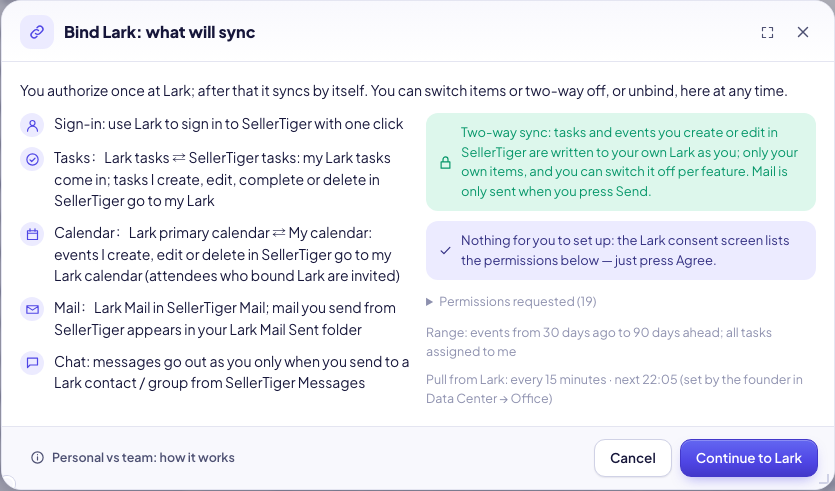
- Sign in with Lark to SellerTiger.
- Tasks: Lark tasks assigned to me ⇄ SellerTiger tasks. With two-way on, tasks you create, edit, complete or delete in SellerTiger are written back to the assignee’s own Lark.
- Calendar: Lark primary calendar ⇄ My calendar (30 days back to 90 days ahead; bound attendees are invited).
- Mail: Lark Mail in SellerTiger Mail; mail you send appears in your Lark Mail “Sent” folder.
- Chat: in SellerTiger “Messages → + → Lark contact / group”, message Lark colleagues or groups (as yourself) and receive their replies.
Before you start
- Use the international Lark (larksuite.com). For Feishu in China (feishu.cn), contact SellerTiger support.
- You can only turn it on when the Lark tile in “Settings → Connections → Lark” shows Provided by SellerTiger. Coming soon means SellerTiger’s Lark app is still being rolled out — try again later.
- If your company’s Lark admin restricts third-party apps, they need to allow the SellerTiger app under app management in the Lark Admin Console (menu names depend on your Lark Admin Console).
Steps 1–5: done by SellerTiger
Credentials, encryption, permissions, event subscriptions and publishing are already done by SellerTiger on its own Lark app. The consent screen you see lists the permissions used — just click Agree.
Step 6 · Turn on sync
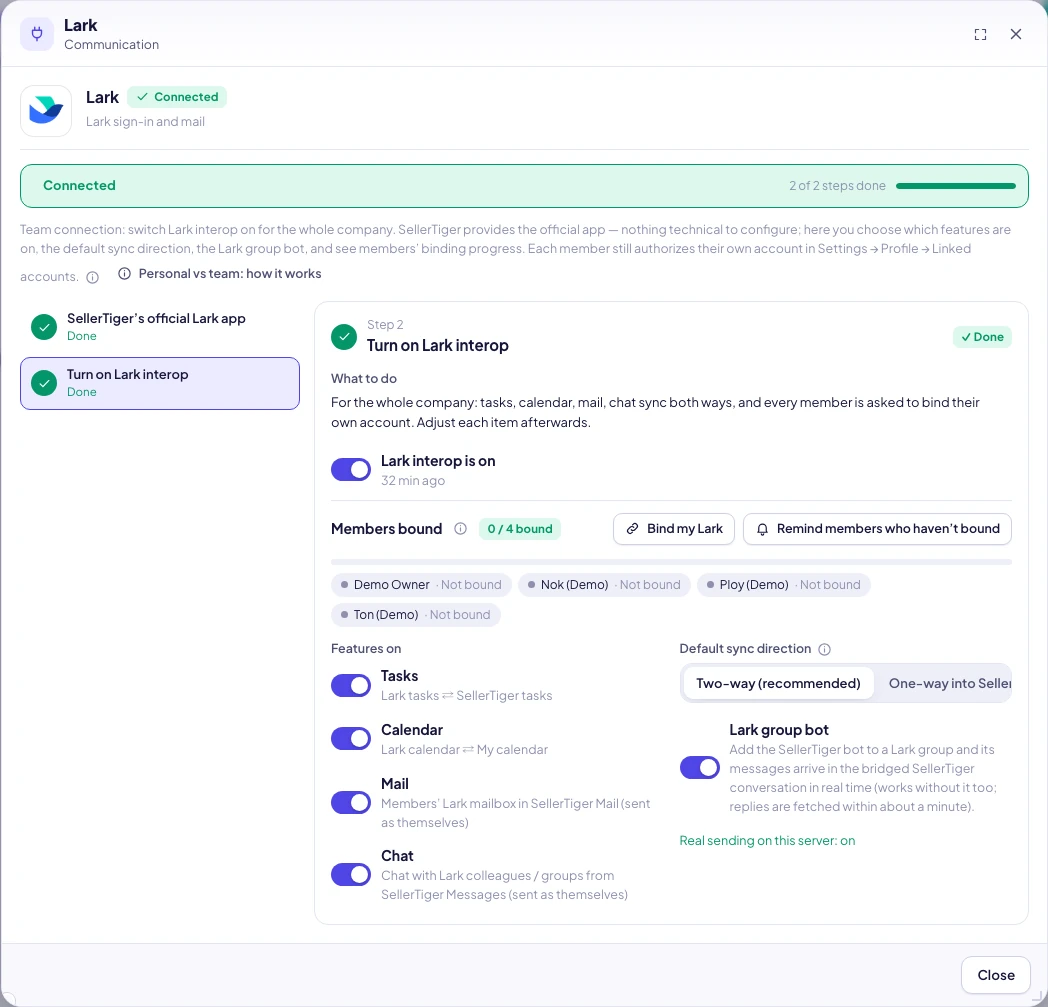
6a (founder) Turn it on in one click
- Settings → Connections → “Communication” → Lark.
- Click Turn on Lark interop in one click. The recommended settings are switched on automatically: tasks, calendar, mail and chat all on, two-way sync, the Lark group bot on, and every member is notified “Bind my Lark”.
- The success message reads “Lark interop is on — n members notified to bind”. The window shows Members bound n / m bound.
- Afterwards you can: switch off single items under Features on; change Default sync direction to One-way into SellerTiger; switch off the Lark group bot; click Remind members who haven’t bound; or turn the whole switch off (member bindings and synced content are kept).
6b (each member) Bind my Lark
- Click the notification “Your company turned on Lark interop”, or go to Settings → Profile → Linked accounts → Bind Lark.
- Read Bind Lark: what will sync (sync scope, requested permissions) → Continue to Lark.
- Sign in with your own Lark account → click Agree.
- Back in SellerTiger, you see “Lark bound — first sync running”. The card shows “Linked as your email · Last sync …”.
- Each feature can be switched off on its own. If you switch off ⇄ Two-way next to tasks and calendar, items only sync in from Lark, and synced items are read-only in SellerTiger.
Check that it works
- In the founder’s Lark window, progress changes to 1 / m.
- Create a task in SellerTiger: it appears in your Lark tasks within seconds. Edit it in Lark, click Sync now, and it updates here, marked “Edited in Lark”.
- Data Center → Office / collaboration → Lark shows each person’s status and task / calendar / mail counts. The founder can change the pull frequency here (Every 15 min / Hourly / Daily / Off = pause sync for the whole company).
Troubleshooting
| Message you see | Cause | What to do |
|---|---|---|
| Coming soon | SellerTiger’s Lark app isn’t live yet | Try again later; nothing for you to configure |
| The one-click button is gray / app_not_ready | SellerTiger’s Lark app is still being published | Try again later; contact support if it persists |
| Only the founder can turn this on or change it | You aren’t the founder | Ask the founder to do it |
| Your company hasn’t turned on Lark interop / Your company has this interop switched off — ask the founder | The team switch is off | The founder does 6a first |
| Re-authorize to turn on two-way sync | Your company just turned on two-way and needs write permissions | In Linked accounts click Re-authorize and agree once more |
| Access expired — re-authorize | The Lark token is no longer valid (password changed, app removed, etc.) | Click Re-authorize |
| Re-authorize to sync this | A feature or permission was added | Click Re-authorize |
| That account is already bound to another SellerTiger user | The same Lark account is bound to someone else | Unbind it from the other user first |
| You canceled the authorization | You clicked Cancel on the Lark consent screen | Bind again and click Agree |
| Authorization expired — try again | You stayed on the consent screen too long | Click Bind Lark again |
| n changes failed to push (reason) | Writing back to Lark failed | Retried automatically (at most once an hour); re-authorize if access expired |
| Your company paused workspace sync | The office sync frequency in Data Center is “Off” | The founder sets a frequency again in Data Center → Office / collaboration |
| Not in your plan / role | Your plan or role doesn’t include the Tasks / Calendar / Mail module | Upgrade your plan or ask the founder to adjust permissions |
FAQ
- Will all my existing tasks be written into Lark? No. Only tasks created or edited after you turn it on are pushed.
- Will it touch other people’s items? No. Each person uses only their own authorization and only writes their own tasks and events.
- What happens when I unbind? Sync stops and access is revoked; synced content stays in SellerTiger.
Still need help?
Open in SellerTigerInside SellerTiger, press the headset button to ask the AI assistant or open a support ticket.