
Brands & channels
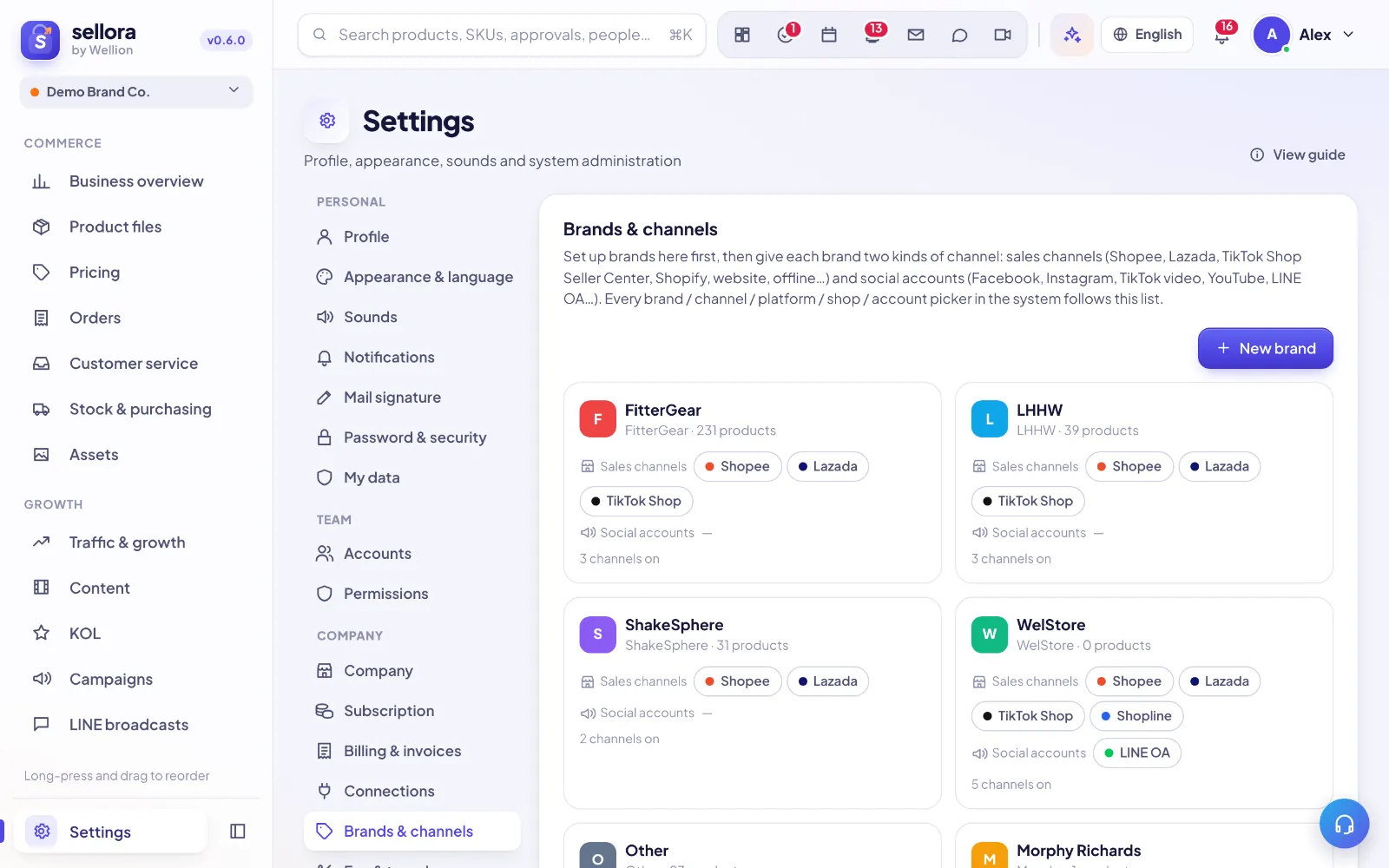
Settings → Brands & channels is the one list of what your company sells and where: your brands, each brand's sales channels (shops) and its social accounts. Every brand, channel, platform, shop and account picker in SellerTiger is built from this list, so set it up before anything else.
Brands and channels, in short
- A brand is a product line you sell under one name. Every product belongs to a brand.
- A sales channel is where orders come from: Shopee, Lazada, TikTok Shop (Seller Center), Shopify, Shopline, LINE MyShop, your website, Offline / POS, Wholesale / B2B, or any other channel you name yourself.
- A social account is where content and followers live: Facebook, Instagram, TikTok (video account), YouTube, Lemon8, LINE OA, X, a blog, or any other account you name yourself.
Each brand has its own set of channels, so two brands can each have their own Shopee shop and their own LINE OA. The page shows one card per brand with its sales channels, its social accounts and how many channels are switched on.
This page is visible to the founder and to people with the Manage level on Settings. Everyone else sees a friendly "Please ask the founder to set this up" wherever a list is still empty.
Add or edit a brand
- Click New brand.
- Enter the Name and, optionally, a Brand code (fixed after creation) — a short ID used in lists and imports. If you leave it empty, SellerTiger creates one.
- Pick a Color, add a short Description and drop a brand Logo onto the image box if you have one.
- Click Save.
Your workspace starts with one brand named after your company. Rename it or add more as you need. To change a brand later, open its card and click Edit; the code cannot be changed.
Add channels to a brand
- Click the brand's card. A window opens with two columns: Sales channels and Social accounts.
- In the column you need, pick a platform in the list and click Add channel.
- For a channel that is not in the list, choose Other sales channel or Other social account, give it a Label (for example "Shopee Mall 2" or "Pinterest") and an optional link, then Save.
A brand can have several channels on the same platform — for example two Shopee shops.
Channel details
Each channel row has a few optional fields. They save as soon as you leave the field.
- Label — the name shown in pickers. Leave it empty to use the platform name. Useful when a brand has more than one shop on a platform.
- Link — the shop or profile URL. An arrow icon opens it.
- Handle / shop name (or
@handlefor social accounts) — helps SellerTiger match orders and connected accounts to this channel. - Shop ID / Seller ID (sales channels only) — the platform's ID for the shop, used for matching as well.
- Site runs on (website channels only) — choose Website, Shopline or Shopify so orders from that shop system land on this channel.
- On / off switch — a switched-off channel is kept but disappears from pickers. Switch it on again any time.
How SellerTiger uses this list
- Pickers everywhere — products, orders, pricing, content, creators (KOL), campaigns and the Data Center offer only the brands and channels set here. SellerTiger never falls back to a built-in platform list.
- Fee rules — Settings → Fee & tax rules shows one tab per sales platform you have set up. See "Fee rules and pricing strategy".
- Connections — each platform in Settings → Connections lists the shops or accounts of that platform from this page, so you know what still needs authorizing.
- Data Center — shows the shops and accounts registered here per platform. Shops that appear in imported or synced orders but are not registered show up as "Found in orders but not registered in Brands & channels", with a Register link.
Bind shops and accounts
Registering a channel here says that the shop exists. Connecting it in Settings → Connections lets SellerTiger read its data. In each platform's window in Connections:
- Shops to bind (from Brands & channels) lists every sales channel of that platform with Bound or No shop bound yet. Click Add & bind next to a channel to register the shop for connection, already linked to the right brand.
- Accounts to connect (from Brands & channels) does the same for social accounts, and Brand LINE OAs (from Brands & channels) for each brand's LINE Official Account.
- The Connections tile shows a reminder such as "3 channels to bind" until everything is bound.
- If a platform has no channel here yet, Connections says "This platform is not set up in Brands & channels yet" and links back to this page.
Once bound, the shops appear in the brand window under Registered shops. For the connection steps themselves, see "Connect your marketplace shops".
Delete a brand or a channel
- Channel: click the bin icon on its row and confirm. To keep history but hide it from pickers, switch it off instead.
- Brand: open the brand and click Delete brand. If products still use it, SellerTiger asks which brand to move them to before deleting ("n products use this brand. Choose a brand to move them to").
Inside SellerTiger, press the headset button to ask the AI assistant or open a support ticket.