
Adjusting prices and price approval
Pricing → Adjust prices is a calculator for what buyers really pay on Shopee, TikTok and Lazada. You choose SKUs, see every platform side by side, change the buyer price or the list price, and save the result to our price table — through approval unless you are the founder.
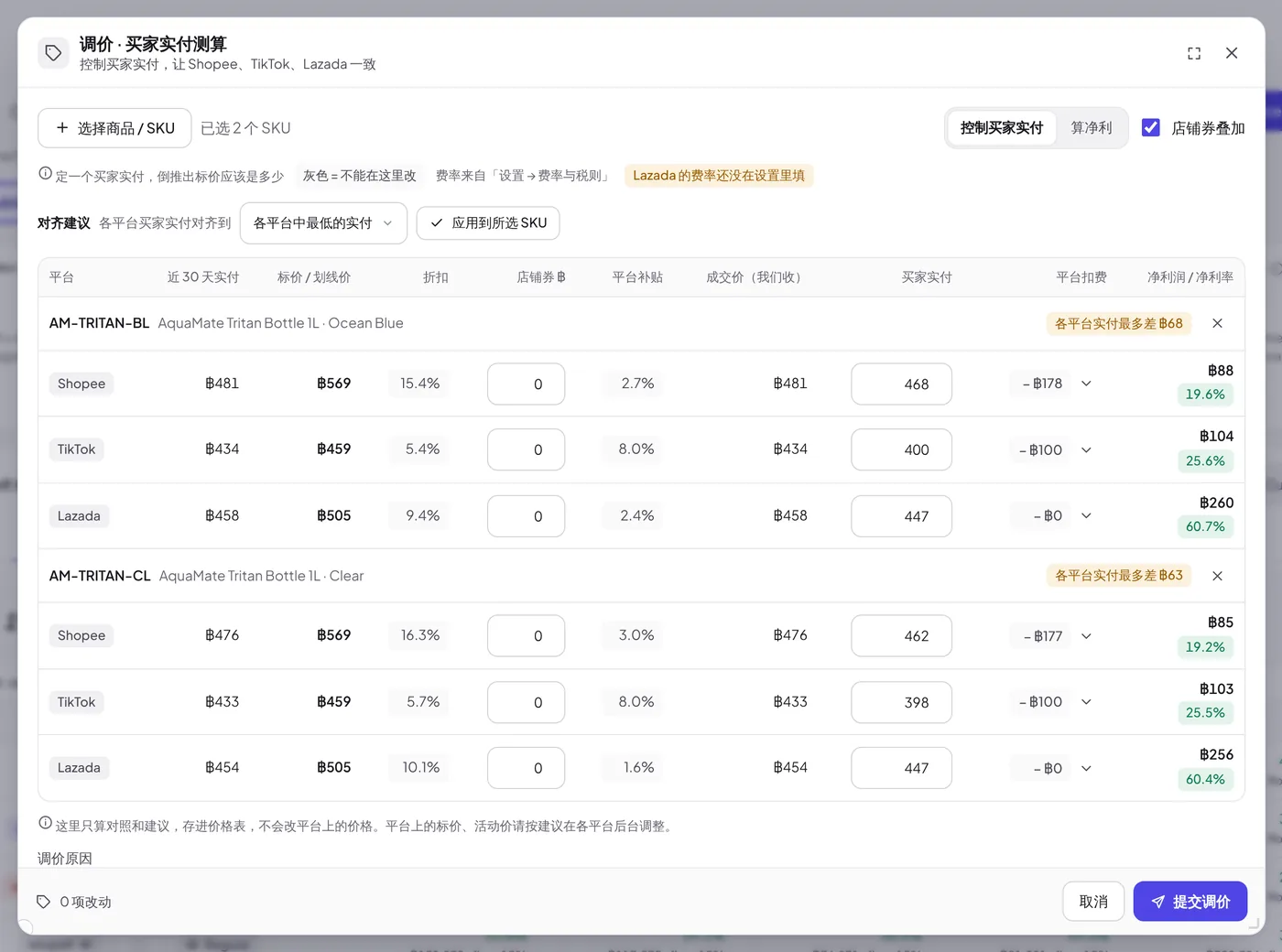
Open the window
- Click Adjust prices at the top of the Pricing page, or right-click a product → Adjust prices to start with its SKUs.
- Click Choose products / SKUs and tick the SKUs (search by product or SKU). Each SKU gets one row per platform: Shopee, TikTok, Lazada. Remove a SKU with the × on its row.
Two modes
Switch at the top right:
| Mode | You type | You get |
|---|---|---|
| Control buyer price | The buyer price you want | The list price it needs, worked back |
| Net profit | A list price | Our sale price, every fee deducted, net profit and net margin |
The calculation: our sale price = list price × (1 − discount) − shop voucher (when Shop voucher stacks is ticked); buyer pays = our sale price × (1 − platform-funded %).
What you can change and what is grey
Only two things are editable: the Buyer pays (or List price, by mode) and Shop voucher ฿ — our own voucher per unit, optional. Everything grey (Grey = not editable here) comes from elsewhere:
| Column | Where it comes from |
|---|---|
| Paid, last 30 d | Average the buyer paid per unit in real orders of the last 30 days |
| List price | The Price List; when it has none, the live listing price |
| Discount | Recognised from this platform's real orders of the last 30 days |
| Platform-funded | TikTok: Settings → Fee & tax rules; Shopee / Lazada: real orders of the last 30 days |
| Platform fees | Settings → Fee & tax rules (commission, payment, service, other, fixed fee, VAT) |
If a platform's fee rules are not set yet, a yellow badge says so — fill them in under Settings → Fee & tax rules first.
Platform fee breakdown
Click the amount under Platform fees to open What is deducted from our sale price: platform commission, payment fee, service fee, other / programme fees, fixed fee per order, VAT on fees, seller vouchers / coins (strategy), creator commission (strategy), ads (strategy), and — for people who may see costs — unit cost and Net profit.
Net profit / margin shows in green, or red with Below the profit floor when the margin is under the tier floor. Only people allowed to see costs see this column.
Align buyer prices
In Control buyer price mode, the Align row sets every platform's buyer price to the lowest of them, Shopee's current, TikTok's current or Lazada's current — click Apply to chosen SKUs. Each SKU shows Same buyer price everywhere or Buyer prices differ by up to ฿….
Save: approval or apply now
The footer counts the changes ({n} changes). Write a Reason, then click Submit price change:
- Everyone except the founder picks the approvers and the change is Sent for approval. Prices change only when it is approved in Approvals.
- The founder sees Apply now (founder only). Ticked, the change applies immediately (Prices changed); unticked, it goes through approval like everyone else's.
What is saved per platform: Shopee — list price and planned buyer price; TikTok — list (strike-through) price and sale price; Lazada — list price. Only platforms you actually changed are saved.
Note: This window only compares, suggests and saves to our price table — it does not change prices on the platforms. Set list and promotion prices in each platform's seller center from the suggestion.
Who can do what
| Action | Who |
|---|---|
| Open Adjust prices and submit a change | Pricing level Edit and above |
| Apply a change without approval | Only the founder |
| See net profit, net margin and unit cost | People allowed to see costs (leaders and the founder by default) |
Related guides
Inside SellerTiger, press the headset button to ask the AI assistant or open a support ticket.