
Product labels & barcode printing
Print labels / barcodes prints product labels (logo, name, variant, SKU, barcode, price, brand) or bare barcodes for any SKUs, on label rolls of a chosen size or on A4 sticker sheets, with a live preview.
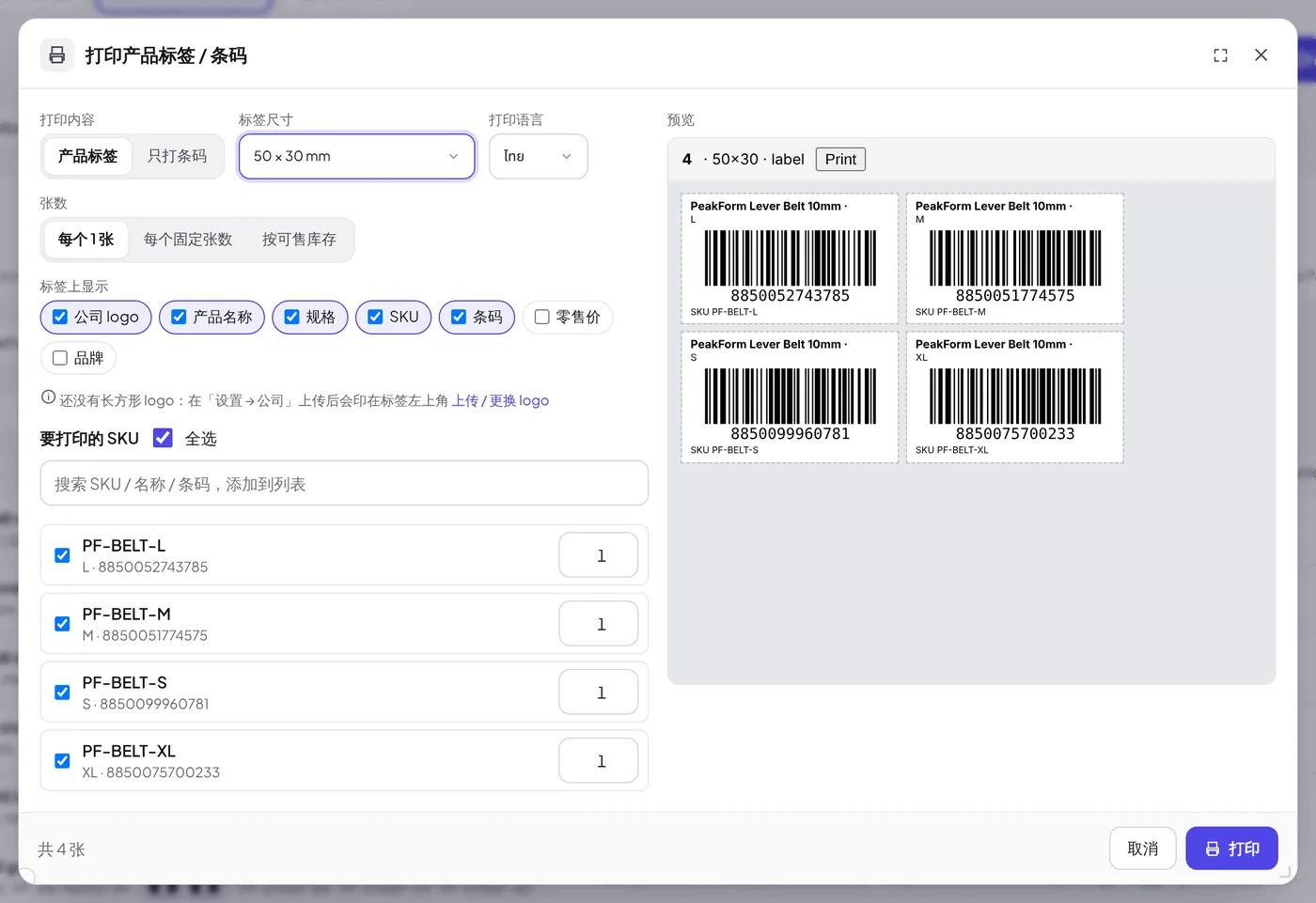
Where to open it
- Products list: tick products, then Print labels / barcodes in the selection bar, or ··· → Print labels / barcodes (n).
- Product page: ··· → Print labels / barcodes.
- Product page → Specs & attributes → SKU specs: the Print labels / barcodes button. Click a barcode to enlarge it, then Print this barcode for just that SKU.
- Settings → Labels & barcodes: Print labels / barcodes for any SKU (search to add).
Choose what to print
- What to print — Product label or Barcode only.
- Label size — 40 × 30, 50 × 30, 60 × 40, 70 × 50, 100 × 50 or 100 × 150 mm; A4 · 24 per page (70×37); A4 · 40 per page (52.5×29.7); or Custom size with your own Width mm (15–210) and Height mm (10–300).
- Print language (labels only) — ไทย, English or 中文, for the printed words such as "Price". It doesn't depend on the language you use the app in.
- On the label (labels only) — tick Company logo, Product name, Variant, SKU, Barcode, Retail price, Brand. The retail price is the SRP from Pricing.
Copies
Copies sets how many labels each SKU gets:
| Option | Labels per SKU |
|---|---|
| 1 each | One |
| Fixed per SKU | The number you type (1–1000), the same for every SKU |
| Sellable stock | One per unit of sellable stock |
You can still change the number for a single SKU in the list (0 = skip it). The footer shows the total, e.g. 24 labels.
The SKU list
SKUs to print lists the SKUs of the chosen products; inactive SKUs start unticked. Tick or untick each, or use All. Type in the search box (SKU, name or barcode) to add more SKUs.
No barcode? A SKU without a barcode prints its SKU code as a Code 128 barcode instead — nothing is made up. The SKU row says so, and a warning above the list counts them: {n} SKUs have no barcode yet. Add real barcodes in Specs & attributes.
Company logo
Labels use the wide logo from Settings → Company; it prints at the top left. If there isn't one yet, the window says so with a link Upload / change logo.
The Preview on the right redraws as you change anything. Click Print: the labels open in a new tab and the print dialog opens by itself (the tab also has a Print button). One print can hold up to 3,000 labels.
Tip: Print one test label first. On a label printer, choose the same paper size in the printer's own settings; for A4 sheets, print at 100 % scale.
Defaults
Settings → Labels & barcodes holds the workspace defaults that every print window starts with: what to print, label size (incl. custom width × height), print language, copies and what shows on the label. Click Edit, change, then Save or Cancel. Out of the box: 50 × 30 mm product label in Thai, 1 each, with logo, name, variant, SKU and barcode. Each print can still change them.
Who can do this
Anyone who can see Products can print labels and barcodes and open the settings page. Only the founder and products managers can change the defaults.
Related guides
Inside SellerTiger, press the headset button to ask the AI assistant or open a support ticket.