
List on platforms (drafts)
Products → tick products → List on platforms sends your products to TikTok Shop and Lazada shops in one go. SellerTiger never publishes anything: each product arrives as a draft (or a hidden, unlisted item), and you check and publish it in the platform's own seller center.
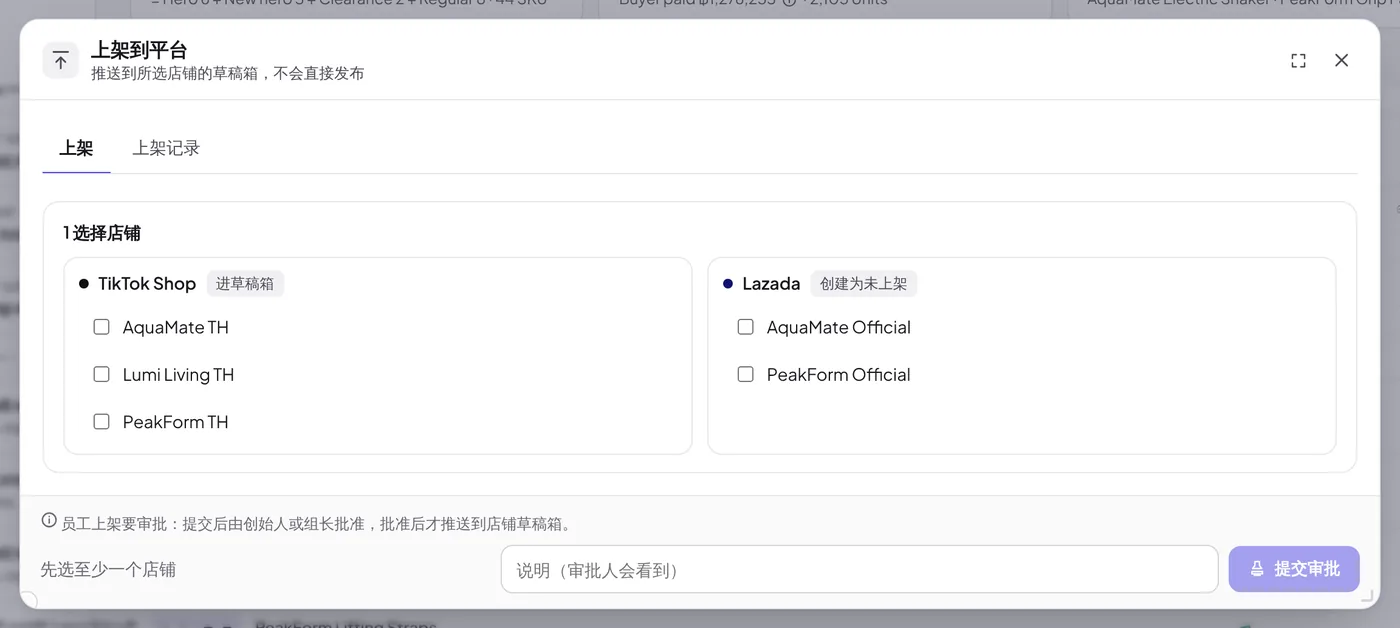
What each platform gets
| Platform | What is created | Where to find it |
|---|---|---|
| TikTok Shop | A real draft (badge Goes to drafts) | Seller Center → drafts; publish it there |
| Lazada | An inactive item (badge Created unlisted) — Lazada's API has no draft box | Seller Center → inactive products. Lazada still reviews it, and it counts toward the shop's item limit |
| Shopee | Nothing yet | Shops show Waiting for Shopee Open Platform access until Shopee approves our API access |
Open the window
- Products list: tick the products, then click List on platforms in the bar that appears ({n} products selected), or use ··· → List on platforms (n).
- Product page: ··· → List on platforms.
- Product page → Shop matching tab: a SKU marked Not listed in an authorized TikTok Shop / Lazada / Shopee shop has a List on platforms button that opens the window with that shop already ticked.
Step 1 — Choose shops
Every TikTok Shop, Lazada and Shopee shop of the workspace is listed by platform. Nothing is ticked for you. A shop that can't take a listing is greyed out and says why:
| Message | What to do |
|---|---|
| Shop not authorized | Authorize the shop in Settings → Connections |
| Authorization expired; re-authorize | Re-authorize the shop |
| The shop authorization lacks product access; re-authorize | Re-authorize so the product permission is included |
| Waiting for Shopee Open Platform access | Nothing to do yet (see above) |
No shops at all? Add and authorize one in Settings → Connections first.
Step 2 — Check the details
Each product gets a row with one chip per chosen shop: Ready, {n} missing, Already in shop or Already sent. Hover a chip to see what is missing; click the row to open the product and fill it in. Check again re-runs the checks.
Common details (all platforms)
- Title — starts as the product name.
- Description — starts as the product description. AI description writes a Thai and an English paragraph that you can Use this.
- Images — the product and SKU images (up to 9). Remove one with ✕, or Make main image.
- Package weight & size — weight in kg and length / width / height in cm. Taken from Specs & attributes (gross weight and the biggest SKU size) when filled there.
- Variants — a Variant name (e.g. Color / Size) when the product has more than one SKU. Every SKU also needs its own variant value, set in the product's SKUs.
Per platform
- Category — Choose category opens the platform's own category tree. Search in Chinese, English or Thai; the platform's Suggested category sits on top. Categories are never typed by hand.
- Brand — Search brand, or tick No brand.
- Required attributes (marked \) for the chosen category, plus Optional attributes* folded underneath.
Prices and stock
The price table shows each SKU's price per shop and its Sellable stock. Prices come from Pricing (the TikTok, Lazada or Shopee price, otherwise the SRP) and can't be changed here; change them in Pricing (staff price changes need approval).
Click Save details when done. What you fill in is kept for next time — the common part per product, category / brand / attributes per platform.
What blocks a push
| Platform | Title | Description | Images | Package | Brand |
|---|---|---|---|---|---|
| TikTok Shop | 25–255 characters | required | 1–9 | weight | optional |
| Lazada | up to 255 | optional | 1–8 | weight + L × W × H | required (or No brand) |
| Shopee | 20–120 | 100–3000 | 1–9 | weight | required |
On every platform: a category, every required attribute, and a price in Pricing for each SKU. A SKU that is already in the shop (same seller SKU) is skipped (In shop, skipped), so a second push never creates a duplicate.
AI fill
AI fill (on one product) or AI fill all (every incomplete product) reads each platform's required fields and fills the category, attributes and description from the product's facts (Specs & attributes). It only fills empty fields and never changes what you typed. Check what it filled before sending. It needs AI in your plan and uses AI credits.
Step 3 — Send or submit
The footer sums it up: {ok} product × shop ready, {bad} incomplete (not sent). Only complete ones are sent.
- Founder: Send as drafts → confirm. Sending starts right away.
- Everyone else: write a Note for the approver and click Submit for approval. The founder or a leader approves it in Approvals; the drafts are sent after approval.
Everything is checked again at the moment of sending, with the data as it is then.
After sending — History
The History tab lists every push: Awaiting approval, Sending, Done, Partly failed, Failed, Rejected or Withdrawn, with Open approval when it went through approval. Per product × shop you see In drafts (TikTok), Created (unlisted) (Lazada) or Failed with the reason, plus the platform's product ID.
Common failures:
- Image upload to the platform failed — check the images and try again.
- The shop has no usable warehouse — set up a warehouse in the platform's seller center.
- Interrupted — check the shop's drafts for the product before sending again.
Then open the seller center, check the draft / inactive item and publish it there.
Who can do this
Anyone who can edit products sees List on platforms. The founder sends directly; everyone else submits for approval, which the founder or a leader decides. In History, the founder and leaders see every push; others see their own.
Related guides
Inside SellerTiger, press the headset button to ask the AI assistant or open a support ticket.