
Promotions
Campaigns → Promotions sets up vouchers, discounts, flash sales, bundles, add-ons and boosts for each shop inside SellerTiger. Every promotion is checked against the platform's rules and the company price floor before it can be submitted; once approved it is pushed to the platform with one click (where the platform's API allows it).
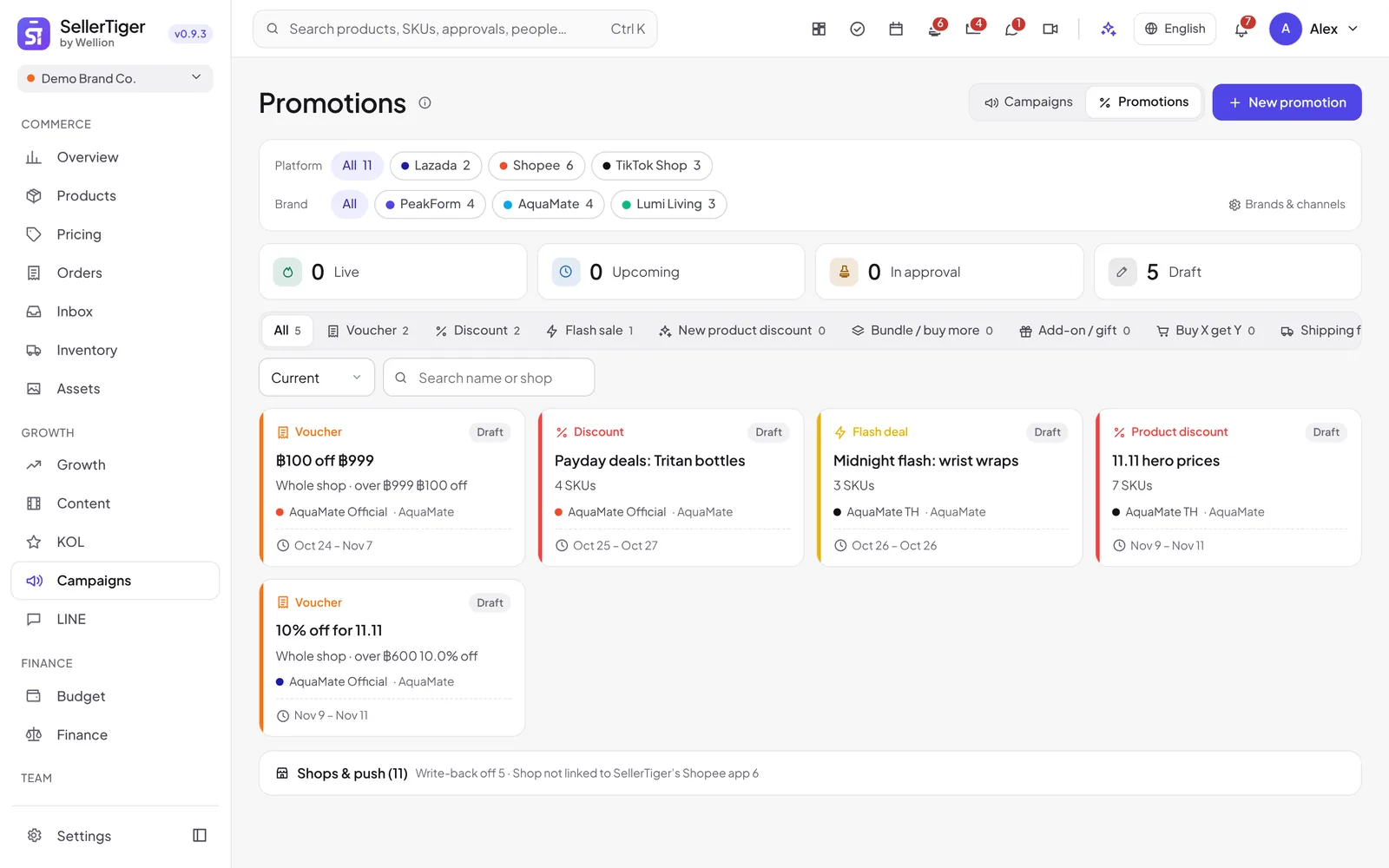
Find your promotions
Open Campaigns and switch to Promotions at the top right.
- Platform and Brand chips narrow everything on the page to those shops (the number is the shop count). Brands & channels opens the brand settings.
- The status cards Live, Upcoming, In approval and Draft count promotions; click one to show only those, click again to go back.
- The type tabs (with counts) filter by tool, using each platform's own name for it. The status list adds Ended and All statuses; the search box finds a name or shop.
- Shops & push (folded at the bottom) shows each shop's state, which tools it supports and its Promo write-back switch.
- Live / upcoming on the platforms lists TikTok promotions already running in the shops, including ones made outside SellerTiger.
Create a promotion
- Click New promotion and pick a type (or click a type card when the list is empty).
- Choose the Shop. The dropdown shows each shop's state, e.g. Ready, Write-back off, Platform approval pending, Create by hand in Seller Center.
- Fill in Promotion name, Start / End and the offer. Fields follow the chosen platform: only options its API takes are offered, and Platform rules under the header lists its limits (max days, max items, name length, code length, discount range…).
- Add items with Add SKUs (Only listed in this shop is on by default). Enter the Promo price, Campaign stock or Limit / buyer where the tool needs them. Each row shows Buyer pays (worst), Off and — for people who may see costs — Net margin.
- Click Save draft, or Submit for approval.
What each platform supports
| Platform | Pushed from SellerTiger | Created by hand in Seller Center |
|---|---|---|
| TikTok Shop | Product discount (deal price or percent off), Flash deal (up to 3 days), Buy more save more (up to 2 tiers, by pieces or amount), Gift with purchase, Buy X get Y, Shipping fee discount | Vouchers (regular, chat, promo code, review; code 6–12 characters), New product discount, Bundle deal (combo) |
| Shopee | Voucher, Discount, Shop flash sale, Bundle deal, Add-on deal (add-on price or gift), Boost | New-customer, repeat-buyer and follower vouchers |
| Lazada | Voucher (whole shop or chosen items), Flexi Combo (up to 3 tiers) | — |
| Shopify | Voucher, Discount, Bundle, Add-on / gift | — |
- Manual tools: the platform's API cannot create them. Set them up and approve them here; the detail window then shows Create this by hand in {platform} Seller Center with the exact values to type, keeping the same name. For TikTok vouchers SellerTiger reads the voucher back — Found on the platform: … claimed · … used — and Read back now refreshes it.
- Shopee: Shopee Open Platform has not approved our app yet, so every Shopee tool shows Platform approval pending. You can build and approve promotions now (Shopee shops from Brands & channels appear even before authorization) and push with one click once Shopee approves.
- Shopee flash sale: no typed start / end. Tick the Platform time slots Shopee offers (Bangkok time); they are read from the platform once the shop is authorized. Shopee's item criteria (discount range, stock, below the 7-day low…) are read from the platform and checked item by item. Auto-continue: when the last slot is about to end, SellerTiger creates the next sessions at the same hours with the same items.
- Shopee boost: up to 5 items at a time, 4 hours each, rotating automatically.
- Shopify: pushing needs the discount permission. If the shop shows Re-authorize (missing permission), authorize the Shopify store again in Settings → Connections.
Price floor and rule checks
While you edit, every item is checked live; the result shows All items pass the price floor or {n} rule breaks — fix them before submitting. Hard breaks block submission for everyone, including the founder:
- Net margin ≥ 15% after every platform fee at the price the buyer really pays (the worst case the tool allows, stacked on any overlapping discount of the same shop), or the higher tier floor from Settings.
- Clearance items get no vouchers. A whole-shop voucher that would cover clearance items is flagged — use a product voucher or unlist them first.
- Hero items never get clearance prices, and prices may not go below the Shopee campaign floor.
- No overlaps: the same SKU cannot be in two promotions of the same kind in the same shop at the same time ("the platform does not allow overlaps").
- Discount range, item count, period and tier order follow the platform's limits.
Everything is checked again when you push, because prices may have changed since approval.
Approval
- The founder sees Save and approve: the promotion is approved straight away (Approved (founder, direct)).
- Everyone else clicks Submit for approval, picks approvers, and the promotion waits in Approvals (In approval).
- To change an approved or rejected promotion, open it and click Back to draft to edit; it then needs approval (and a push) again. Copy makes a new draft from any promotion.
Push to the platform
Pushing is a separate step after approval:
- Turn on the shop's Promo write-back switch under Shops & push (off by default; Shopee shops have no switch here yet).
- Open the approved promotion and click Push to platform, then confirm. It is created for real and buyers see it right away. SKUs not listed in that shop are skipped and named in the result.
The status shows On the platform with the platform id, or Push failed with the reason. Every call is listed in Push log.
End early
End now stops a pushed promotion on the platform first, then marks it ended here. A promotion still in approval is withdrawn and marked canceled. Promotions also end by themselves after their end time. Only unpushed drafts can be deleted.
Who can do what
| Action | Who |
|---|---|
| See promotions | Campaigns level View and above |
| Create, edit own drafts, copy, submit | Campaigns level Edit and above (Approve level also edits others' drafts) |
| Approve without the approval center | Only the founder |
| Turn the Promo write-back switch on / off, push, end an approved promotion | The founder, or Manage level in Campaigns or Pricing |
| See net margin | People allowed to see costs |
Related guides
Inside SellerTiger, press the headset button to ask the AI assistant or open a support ticket.