
Product data & attributes
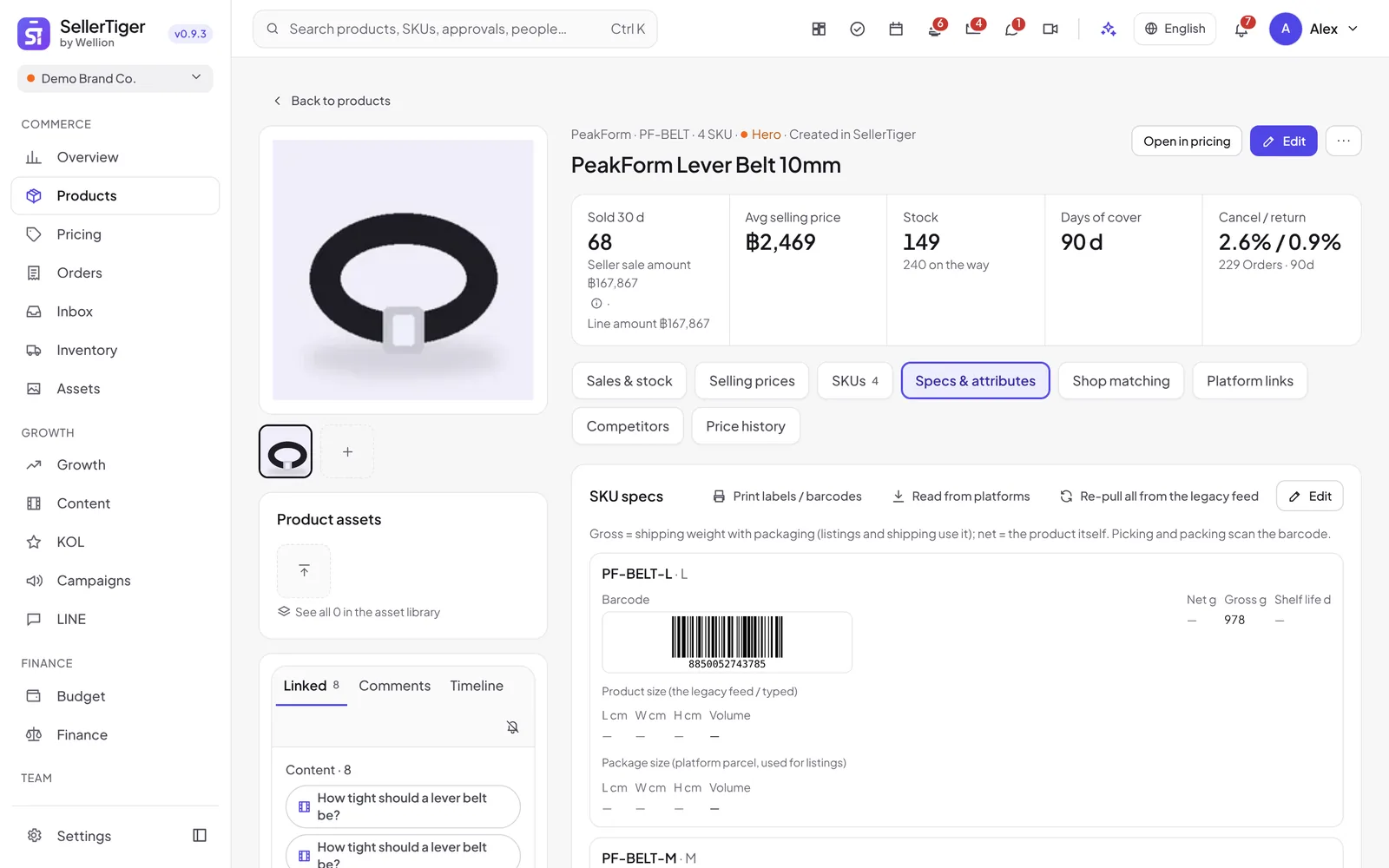
Open a product in Products and use the Specs & attributes tab for everything picking, shipping and platform listings need: barcodes, weights, sizes, shelf life, names in three languages, attributes, platform categories and expiry lots. The Shop matching tab shows which shops sell each SKU. Products whose SKUs are really several styles can be split.
Editing and approval
Every card is read-only until you click Edit; then Save or Cancel.
- The founder: changes apply right away.
- Everyone else: the button reads Submit for approval. The founder or a leader approves it in Approvals (the request shows Before → After for every field). Until then the tab shows A data change is waiting for approval.
SKU specs
One block per SKU:
| Field | What it is |
|---|---|
| Barcode | Scanned when picking and packing. 4–60 letters, digits, -, _ or .. If another SKU has the same barcode you get a warning, because scans would be ambiguous |
| Net g | The product itself |
| Gross g | Shipping weight with packaging — listings and shipping use this one. Net can't be more than gross |
| L / W / H cm | Package size; Volume is worked out for you (cm³ and litres) |
| Shelf life d | Days. Used to fill in the expiry date of a new lot |
Click a barcode to enlarge it — a big, white barcode you can scan straight from the screen, with Print this barcode. The card also has Print labels / barcodes (see "Product labels & barcode printing").
Read from platforms (founder or products managers) fills barcode, weight and size from your TikTok Shop and Lazada product data. It only fills empty fields and never overwrites what people entered. The Data Center also does this daily (Product specs (barcode, weight, size)).
Names, descriptions & attributes (zh · en · th)
Switch between 中文, English and ไทย; a language with no name is marked Missing. Each language has a Product name, a Description and its own attribute values. Listings use the matching language — Thai marketplaces Thai, the website and cross-border English.
AI generate writes a draft in all three languages from what the product already has. Nothing is saved until you check it and click Save (or Submit for approval).
The English and Thai names can also be set in the product's Edit window (Edit details → English name, Thai name). They are stored here, so the same approval rule applies: for staff you'll see English / Thai names sent for approval.
Product attributes
The facts marketplaces usually ask for: material, usage / benefit, size / volume / net content, ingredients, country of origin, suitable for, flavor / scent / color, storage, model, warranty, Thai FDA no. (อย.), TIS no. (มอก.), manufacturer and other facts. Fill them once; when listing, the AI maps them to each platform's attribute names. Leave unknown ones empty — never guess registration or certificate numbers.
Platform categories
One row each for TikTok Shop, Lazada and Shopee. Categories are never typed: click Choose to pick from the platform's own tree, or AI match to let the AI pick (it also fills attributes for listing). You need an authorized shop of that platform first; Shopee shows Available once Shopee Open Platform access is approved. An old imported category text is shown read-only and no longer used. The chosen categories are used by "List on platforms".
Lots & expiry
Click Add lot and fill SKU, Lot no., Made on, Expires and Qty. If the SKU has a shelf life, the expiry date fills itself from the production date. Each lot shows {n} days left or Expired {n} days ago; click Done / sold out when a lot is gone.
Warn days ahead (default 60) sets the warning window. Lots inside it get a badge in the product list — Expires {date} or Expired lot. Only the founder or products managers can change the number.
Shop matching
A table of SKUs × shops (TikTok Shop, Lazada, Shopee, Shopify, Shopline, LINE MyShop), matched by seller SKU code from the shops' product sync. Each cell shows Active, Inactive, Draft / unlisted (sent from here) or Not listed, with the item ID, price and sellable stock. Shops that aren't authorized are marked not authorized.
- A Not listed SKU in an authorized TikTok Shop / Lazada / Shopee shop has a List on platforms button.
- Below the table, Variations on the same shop items whose seller SKU matches none of ours lists platform SKUs that need a code fix.
Split a product
When one product holds SKUs of different styles (different SKU code series), sales, stock and prices get mixed. SellerTiger points these out:
- above the product list: {n} products may mix SKUs of different styles → Show them;
- on the product page: a note with Review & split or Keep as is.
You can also use ··· → Split product on any product with more than one SKU.
In the window, each group becomes one product:
- Drag SKUs onto another group. Tick several first to move them together; drop on Drop here for a new group to start a new one.
- Give each group a Product name.
- Pick which group Stays the original product — it keeps the links, assets, comments and timeline.
- Click Split now (founder) or Submit for approval (everyone else).
Sales, stock and prices follow their SKUs; order history is not changed.
Who can do this
Anyone who can see Products can view these tabs. People who can edit products can click Edit, add lots and request splits; the founder's changes apply directly, everyone else's go to approval (decided by the founder or a leader). Adding or closing a lot needs no approval. Read from platforms and Warn days ahead are for the founder and products managers.
Related guides
Inside SellerTiger, press the headset button to ask the AI assistant or open a support ticket.